Frame a clip
Choose what one clip shows in a tall or square frame by hand, or let the AI Director frame whoever is talking, with Follow, Split and Wide.
When you export a wide recording as 9:16 or 1:1, Cutscript has to decide which part of the picture to show. By default it follows the cursor or stays centred. Frame this clip lets you decide by hand: you drag a window over the whole recording, and that window is what the clip shows. You can hold it in one place or move it during the clip.
For a talk, a podcast or an interview, Frame the speakers with AI does it for you: Cutscript finds the faces, the AI Director looks at a screenshot at each camera cut and each change of speaker, and every moment is framed on whoever is talking. See "Frame the speakers with AI" below.
The quickest way to frame a clip by hand is on the preview itself: select the clip and click the video. See "Reframe on the preview" below. Or double-click the video, with nothing selected, to change whatever frames the picture at the playhead. See "Double-click the preview" below.
Before you start
- Select a clip. That means a piece on the main track of the timeline, or words in the script, or an In and Out range.
- Pick a fixed aspect such as 9:16 or 1:1 in Aspect & crop. With the Source aspect there is nothing to frame. See "Limits" below.
- In the Screen panel, the switch at the top must be on This clip. On Whole video, the panel shows the Framing group instead, which is described under "Between two framed clips".
- Framing by hand needs no AI and no internet connection. Frame the speakers with AI does.
Frame a clip by hand
- Open Screen in the right rail (
⌘ 5). - Under Aspect & crop, pick a fixed aspect, for example 9:16.
- Select the clip on the timeline and check that the switch at the top reads This clip.
- Open Frame this clip and pick Fixed. (The choices are explained below.)
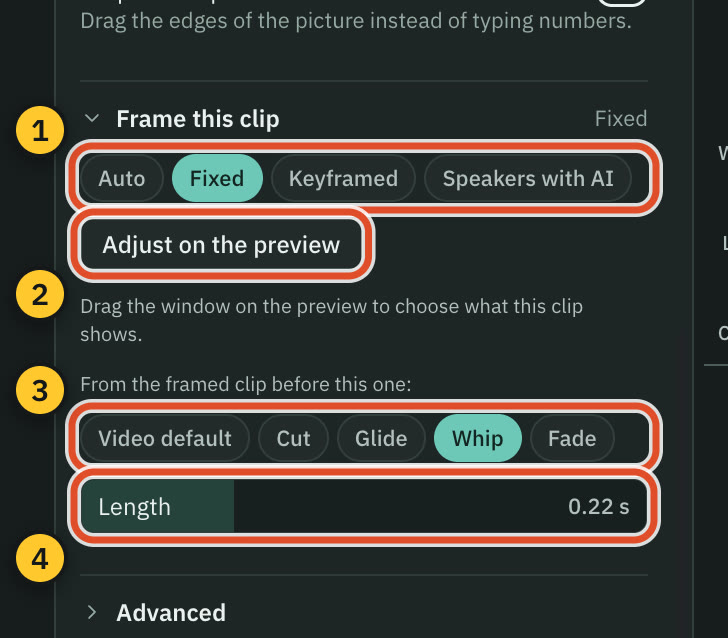
- Press Adjust on the preview. If the playhead is outside the clip, the preview jumps to it first. The preview now shows the whole wide recording, with a window the shape of your frame drawn over it.
- Drag inside the window to move it. Drag a corner to resize it. The window keeps its shape.
- Press Done adjusting when the window shows what you want. Done in the bar above the preview and
Escdo the same.
What you frame is what you export. The preview and the export draw the same window.
Undo and redo cover every drag and every key.
The four choices
| Choice | What it does |
|---|---|
| Auto | The frame does what the whole video does for this clip. |
| Fixed | One window for the whole clip. |
| Keyframed | The window moves between keys. |
| Speakers with AI | The AI Director frames whoever is talking in this clip. See "Frame the speakers with AI". |
Reframe on the preview
You can frame a clip without opening Screen at all.
- In the Aspect menu above the preview, pick a tall or square aspect, for example 9:16. With Source, the bar says to pick an aspect first.
- Select a clip: a piece on the main track, words in the script, or an In and Out range.
- Click the video in the preview. You can also press
R, or press Reframe above the preview.
The preview now shows the whole recording, dimmed, with a window the shape of your frame on top. If the playhead was outside the clip, it moves into it.
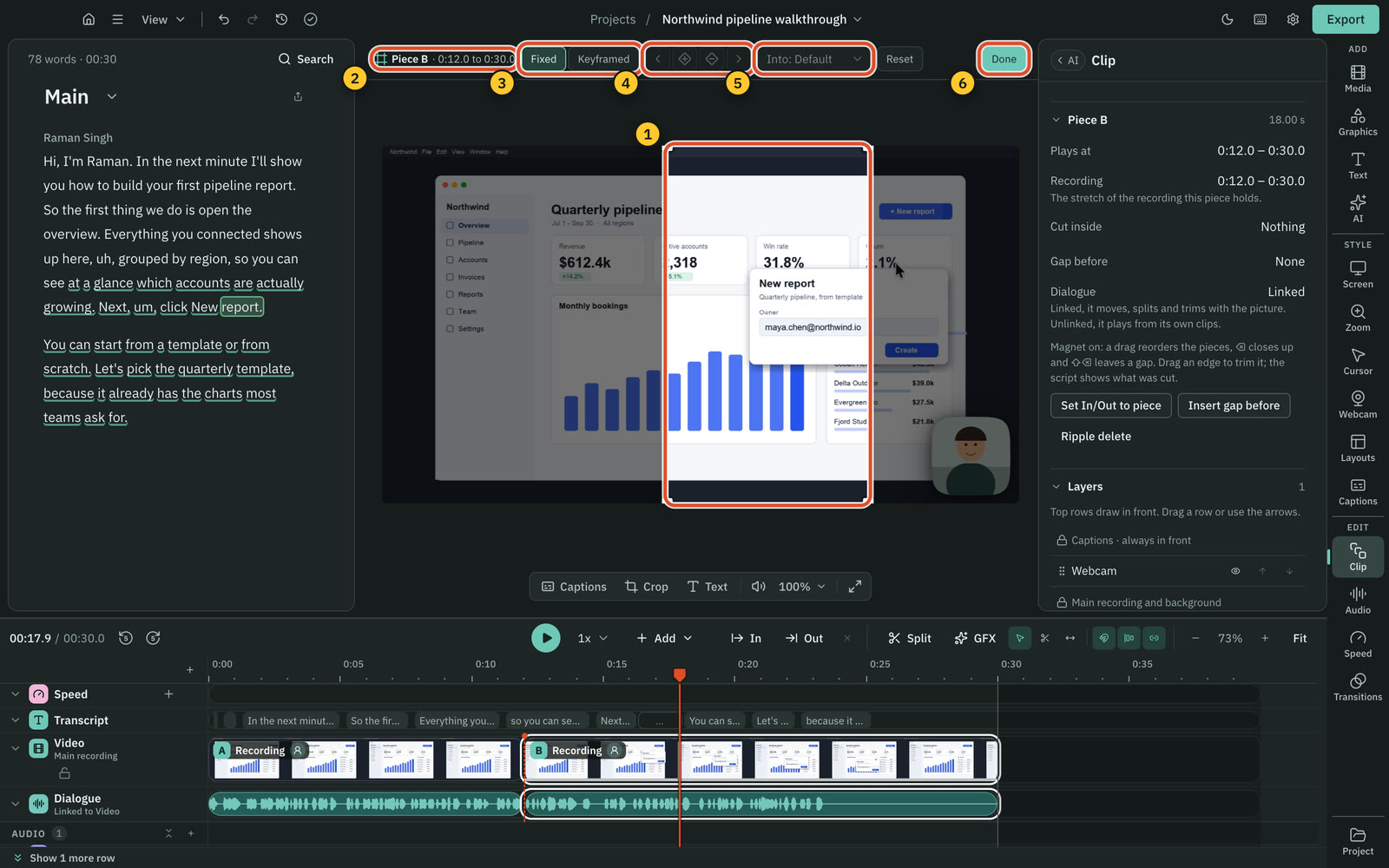
- Drag inside the window to move it.
- Drag a corner, scroll, or pinch on the trackpad to resize it. The window keeps its shape.
Each drag and each scroll is one step in Undo.
A click on the video starts reframing only when a clip is selected and you click the picture itself. While the video plays, the first click pauses it, as before; click again to reframe. A click on a caption, a note, a graphic, the webcam bubble or an overlay clip still selects that, as before. With nothing selected, a click on the video selects the screen recording, as before.
The bar above the preview
While you reframe, the bar above the preview shows:
- The clip and where it sits on the timeline, for example "Piece B · 0:04.0 to 0:08.0". "Auto" means the clip has no framing of its own yet, and "3 keys" counts the keys of a Keyframed clip.
- Fixed or Keyframed.
- Four key buttons: previous key, add a key at the playhead, remove the key at the playhead, next key. Go to clip takes their place when the playhead is outside the clip.
- Into: how the frame moves into this clip from the framed clip just before it: Video default, Cut, Glide, Whip or Fade. It is greyed out until that clip is framed too.
- Reset takes this clip's own framing away, so it frames like the rest of the video again. Speaker framing stays where it is.
- Done finishes.
While you reframe
- Press
Spaceto play and pause. The window follows the playhead, so you can watch and set keys as you go. - Select another clip on the timeline to reframe that one instead. The clip you were on keeps what you set.
- To finish, press
Esc, pressRagain, press Done, or click an empty part of the timeline. - If Frame the speakers with AI framed the clip, the window starts where it was put. Once you move it, the framing is yours: the clip becomes Fixed, and framing the speakers again keeps it.
- Captions are hidden while you reframe, because the preview shows the whole recording rather than your frame. They come back when you finish.
Double-click the preview
Double-click the video in the preview to change whatever frames the picture at the playhead. You do not need to select anything first. If the video is playing, the double-click pauses it.
What opens depends on what the playhead is on:
| At the playhead | What the double-click opens |
|---|---|
| A layout passage | The layout's panels on the preview, and the Layouts panel with that layout. Drag inside a panel to choose which part of its picture it shows. |
| A passage from Frame the speakers with AI, or one you framed by hand | Reframing for that passage, with the whole recording shown. The passage is selected: as its piece when it is exactly one piece of the main track, otherwise as an In and Out range. |
| A clip with no framing of its own | Reframing for that clip, with the clip selected. |
From there, everything in "Reframe on the preview" works the same: drag the window, use the bar above the preview, and press Done or Esc to finish. Opening changes nothing, and each drag is one step in Undo.
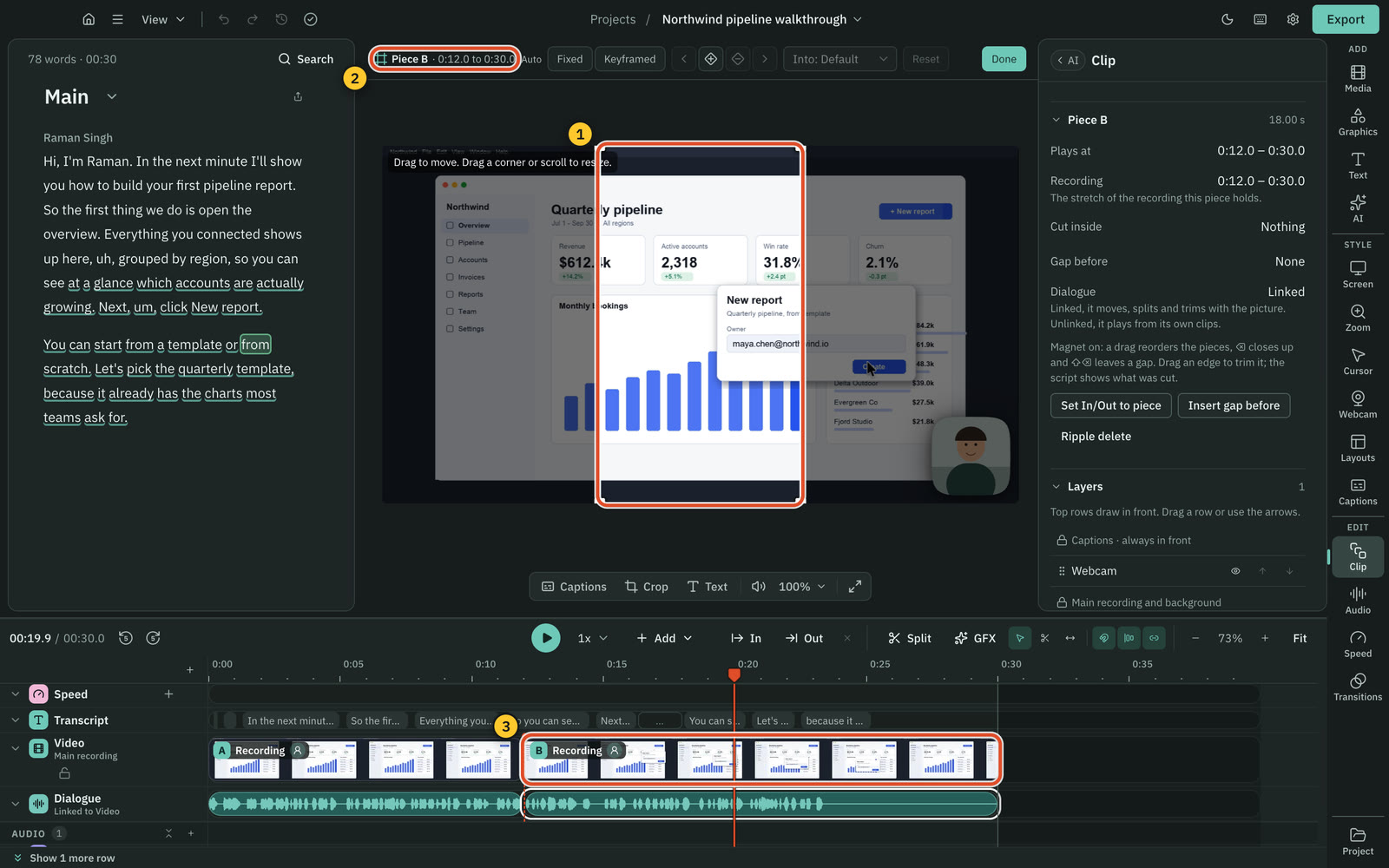
A passage from Frame the speakers with AI
The bar says how the AI framed the passage, for example "Split by AI", and offers:
- Follow: the frame stays on the person talking. It uses what the AI already answered for this stretch, so it costs nothing. If this part of the video was never framed with AI, Cutscript says so and changes nothing.
- Fixed or Keyframed: you frame the passage yourself with one window. Framing the speakers again keeps it.
- Into: how the frame moves into the passage. The passage keeps its mode.
- Reset: back to what the AI chose, once you have changed the passage.
A Split or Screen and face passage shows one window per panel, named Top and Bottom (Left and Right on a wide frame), or Screen and Face. Drag a window to change what that panel shows, or drag a corner to resize it. A panel that follows a face keeps following it, moved by the same amount. The passage stays a Split and says "your choice", so framing the speakers again keeps it.
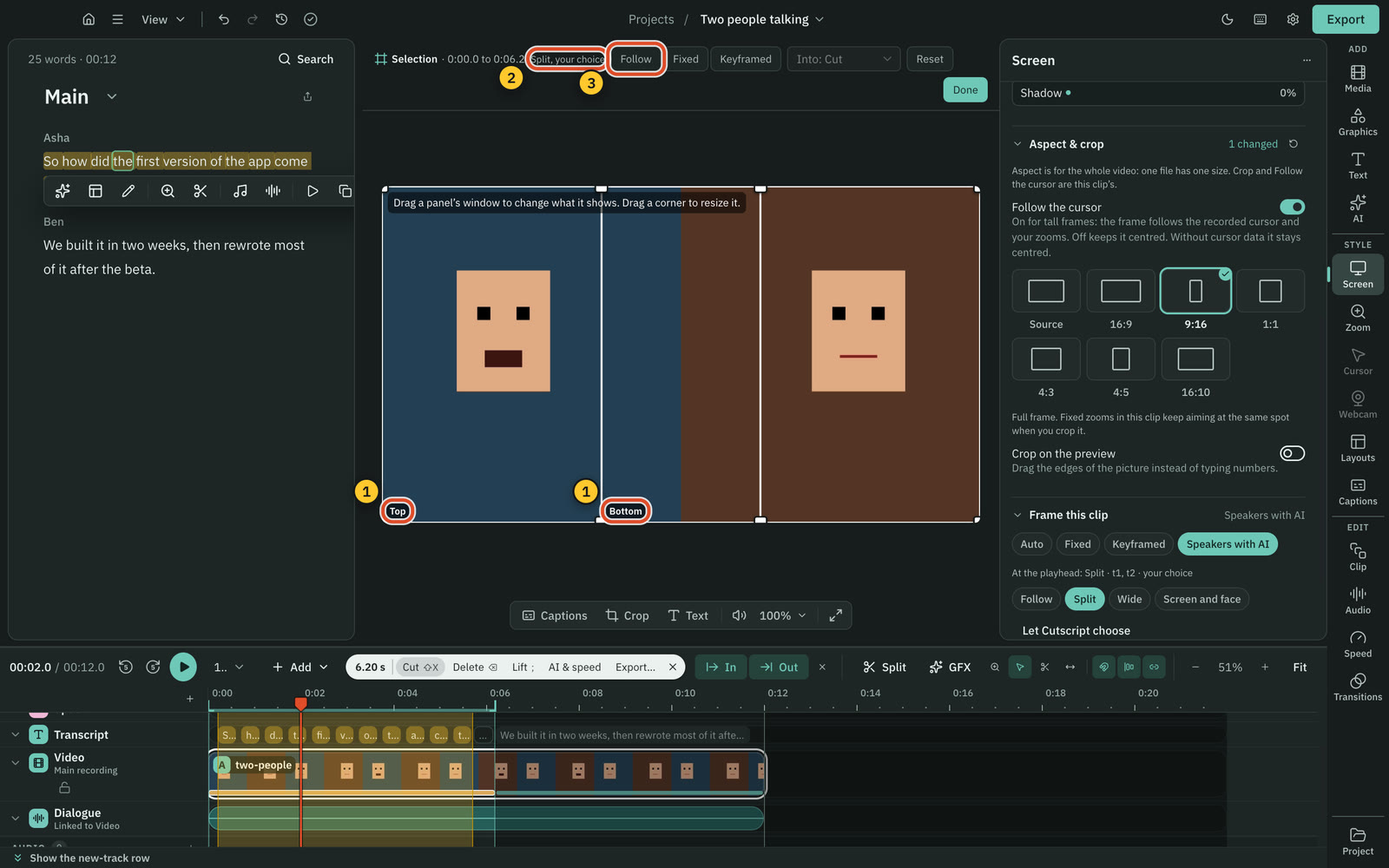
A Wide passage shows the whole shot. Drag the window, or press Fixed, to frame it yourself.
What keeps its own double-click
A double-click on a caption, a note, a graphic, the webcam bubble or an overlay clip does what it did before. For example, a double-click on a text note still edits its text. Only a double-click on the video itself opens framing. In crop mode, and while you are already reframing, a double-click does nothing new.
With the Source aspect there is nothing to frame: the double-click selects the clip, and the bar says to pick an aspect such as 9:16 or 1:1.
Make the window move
Keys are the moments where you set the window. Between two keys, the window eases from one to the other.
- Pick Keyframed under Frame this clip, or in the bar above the preview.
- Move the playhead to another moment in the clip.
- Drag the window. A key is added at the playhead.
- Repeat at as many moments as you like. The panel counts them, for example "3 keys".
To change an existing key, put the playhead on it and drag the window. Add key adds a key at the playhead. Remove key removes the key at the playhead. It is greyed out when the playhead is not on a key, and a clip always keeps at least one key. On the preview, the previous key and next key buttons move the playhead from key to key.
On the timeline's Video row, a white line marks a hand-framed clip. Under it, small diamonds along the bottom of the clip show the keys.
Between two framed clips
When two framed clips meet, the frame can move from the first clip's window to the second's in four ways:
| Transition | What it does | Length |
|---|---|---|
| Cut | The frame jumps on the first frame of the second clip. | None |
| Glide | The frame eases from the last clip's window to the new one. | 0.15 to 2 s, starts at 0.45 s |
| Whip | A fast pan with motion blur. | 0.08 to 0.6 s, starts at 0.22 s |
| Fade | A short cross-fade from one to the other. | 0.1 to 1 s, starts at 0.3 s |
Set the default for the whole video:
- Select nothing, or switch the panel to Whole video.
- In Screen, find the Framing group and pick Cut, Glide, Whip or Fade.
- For Glide, Whip and Fade, drag Length.
Then change one clip:
- Select a framed clip that follows another framed clip, with the switch on This clip.
- Under "From the framed clip before this one:", pick Video default, Cut, Glide, Whip or Fade.
- Drag Length for the ones that take time.
Video default makes the clip use the whole video's choice.
Frame the speakers with AI
Frame the speakers with AI is for videos of people talking: a podcast on one wide camera, an interview, a panel, a talk. Cutscript finds the faces on your computer, then the AI Director looks at a screenshot of the video at each camera cut and each change of speaker. Every face on the screenshot has a numbered box, and the AI reads the faces and the transcript to say who is talking and how to frame that moment:
| Mode | What you see | When the AI picks it |
|---|---|---|
| Follow | The frame stays on the person talking and moves with them. | One person is talking. |
| Split | Two people, one above the other, each framed on their face. | Two people talk at once, or go back and forth. |
| Wide | The whole shot, with a blurred copy of it filling the rest of the frame. | Three or more people, laughter, nobody talking, or no face. |
| Screen and face | The screen on top, the face below. | A shared screen or slides with a face next to it. |
Before you start
- An AI source with a vision model. The AI Director uses the vision model in Settings › AI › AI director (Gemini 3.1 Flash Lite unless you changed it), on your OpenRouter key, your ChatGPT plan or your Claude plan. If the model you picked cannot look at pictures, the card says so and names one that can.
- A transcript helps. With speaker labels, the AI is asked at each change of speaker and sees who says what. Without a transcript it is asked every few seconds in shots with two or more people. See Transcription.
- A tall or square aspect, such as 9:16 or 1:1. If the project is still wide, applying the result sets the frame to the aspect you asked for.
Frame the whole video
- Open Screen in the right rail (
⌘ 5) and pick a tall or square aspect under Aspect & crop. - Select nothing on the timeline. In the Framing group, press Frame the speakers with AI. The AI panel opens with "Frame the speakers for 9:16 on whoever is talking" in the message box. You can also type that, or "frame this for 9:16 on whoever is talking", in the AI panel yourself.
- Press Send. Nothing is spent yet: a card appears with the price, for example "≈ $0.09 · up to $0.23 · about 214 screenshots in 27 requests, ~283k tokens · about 2 min 25 s". On a plan it says it runs on your plan.
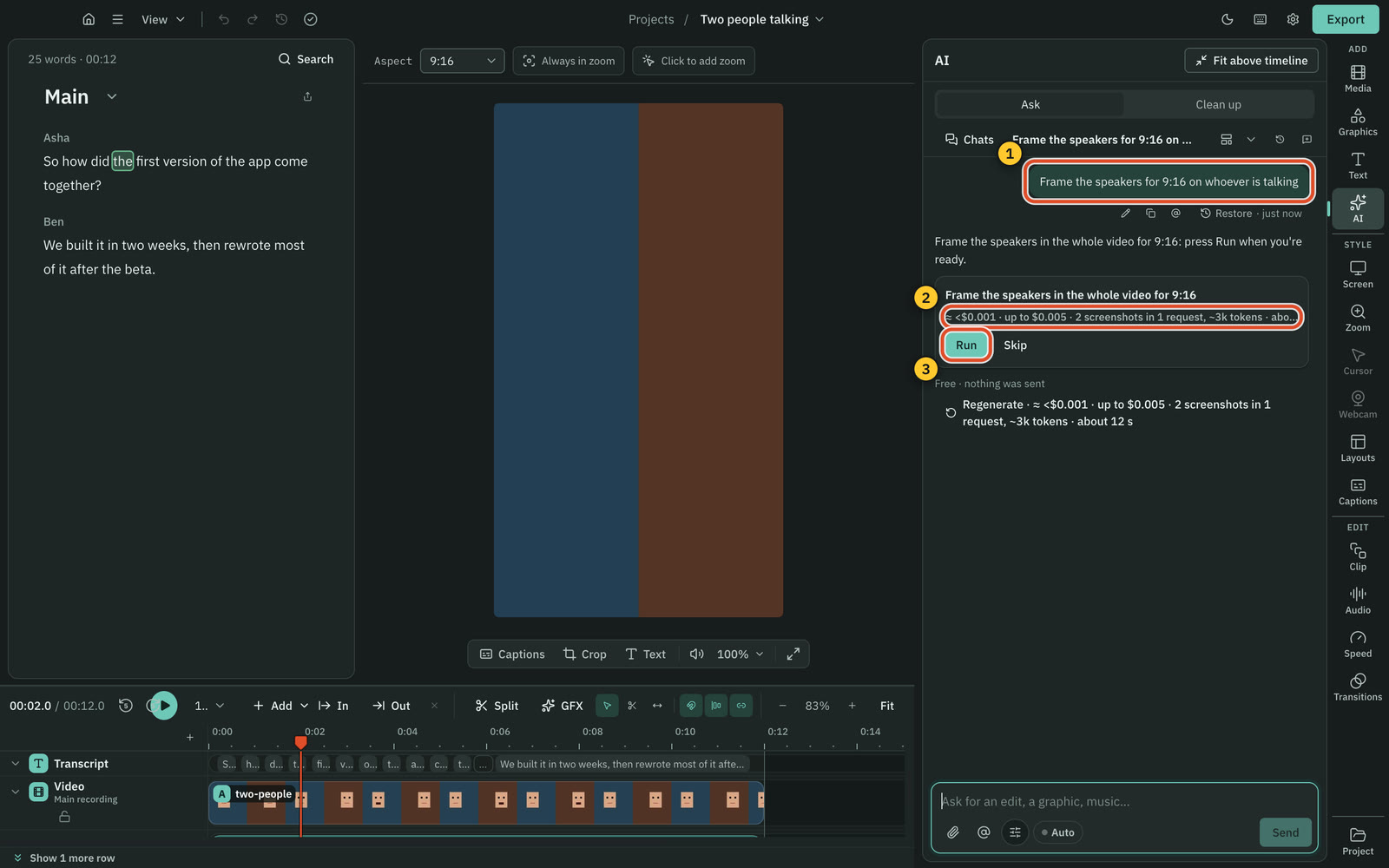
- Press Run. The card shows each stage: "Finding faces on this Mac", then "Asking the AI about 214 screenshots: 12 of 27 requests". Press Stop to cancel.
- When it is done, the card shows a summary such as "Follow 70%, Split 8%, Wide 22%, 214 screenshots, $0.09, 2 min 30 s" and the framing waiting to be applied. Press Apply (the button counts the changes, for example Apply 1 change), or Discard. Applying is one step in Undo.
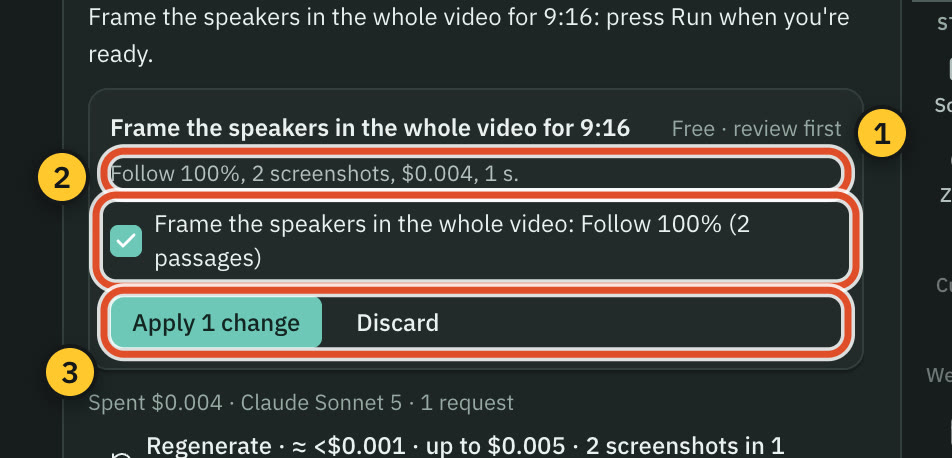
The pictures here come from a short test video of two drawn faces, so the numbers are small. A real episode takes many more screenshots.
The faces take about a minute and a half for 50 minutes of video on an Apple silicon Mac, and longer on an Intel Mac. Cutscript keeps them with the project, so framing the same video again, or one clip of it, starts straight away with the AI's part. Settings › Storage counts them with the project, and clearing the project's cache removes them.
If you start an export or a recording while the faces are being found, it waits ("Waiting for the export to finish") and carries on afterwards. With Auto on in the AI panel, the run goes ahead by itself when its price is inside the amount on the Send line, and the framing is applied.
Frame one clip or a range
- Select a clip, with the switch at the top of Screen on This clip, and pick Speakers with AI under Frame this clip. The message names the clip's times, for example "Frame the speakers from 1:05.2 to 2:10.4 for 9:16 on whoever is talking".
- Or set an In and Out range and ask the AI panel to "frame the speakers in the selection".
Only that stretch is asked about and framed.
See and change the passages
On the timeline's Video row, each passage is a short coloured bar along the bottom: one colour for Follow, one for Split, one for Wide, one for Screen and face. Point at a bar to see its mode and who is in it.
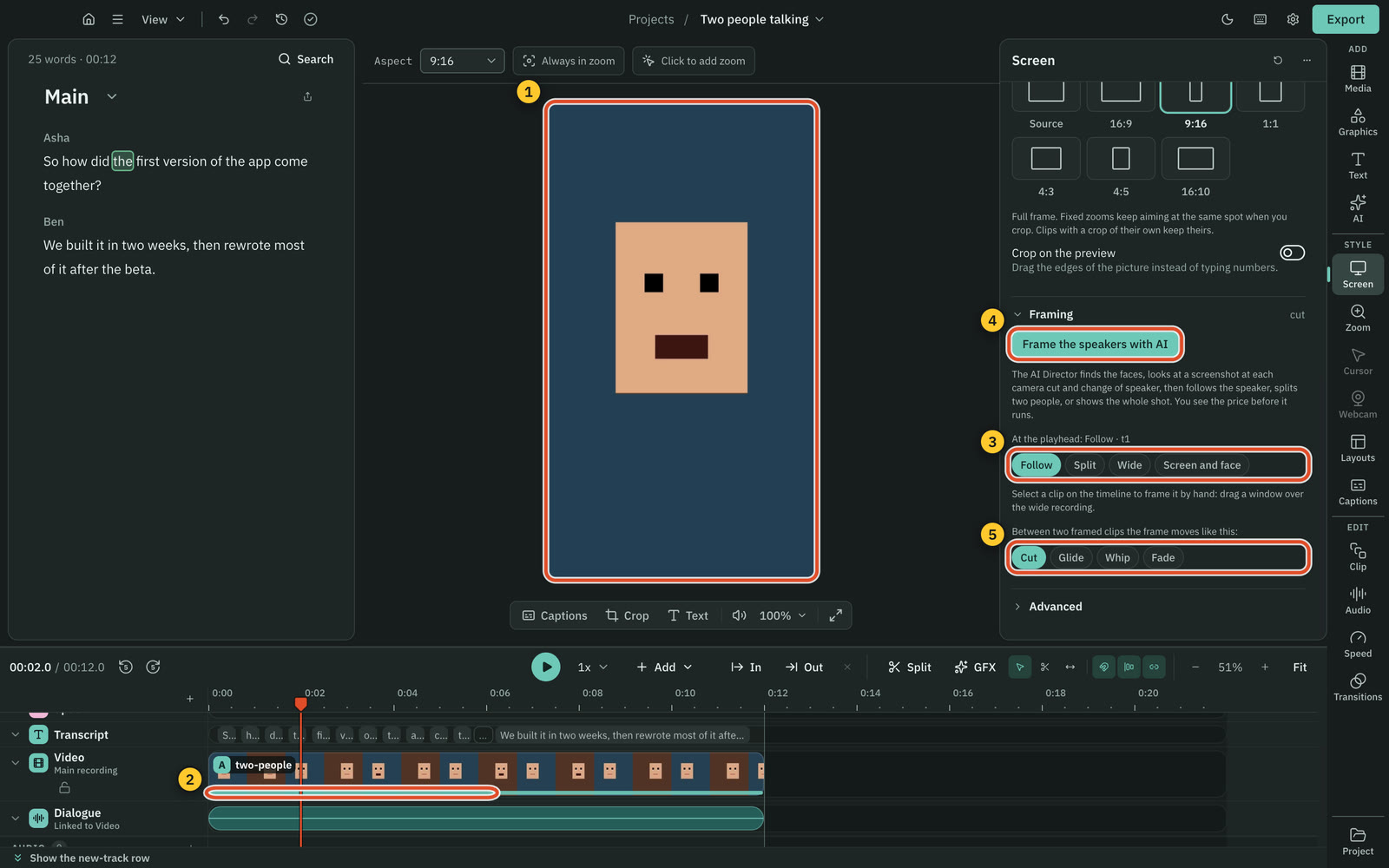
To change one passage:
- Move the playhead into it.
- In Screen, under "At the playhead", pick Follow, Split, Wide or Screen and face.
You can also double-click the passage on the preview: see "Double-click the preview".
A passage you change is yours: it says "your choice", and framing the speakers again keeps it. Press Let Cutscript choose to go back to what the AI said there. Passages you framed by hand with Fixed or Keyframed are kept too. Changing a passage is free: it uses what the AI already answered.
How the frame moves between passages
- On a camera cut in the video, the frame always cuts.
- Into and out of Split, Wide and Screen and face, the frame fades for 0.3 s.
- Between two Follow passages, the frame does what the whole video's Framing transition says (Cut by default). A small move always glides.
Good to know
- The AI sees one still picture per moment, plus the transcript around it. A microphone in front of the mouth or a face in profile can make it pick the wrong person. Change that passage as described above.
- The price on the card counts the screenshots from the transcript before the faces are found, so the real number can be lower. The "up to" figure is the most a run can cost, and it never goes past your limits in Settings › AI › AI director.
- Each request carries 8 screenshots, 768 pixels wide. Several requests run at once (two at a time on a plan).
- If a request gets no usable answer, it is tried once more; after that, those moments are framed from the faces alone, and the summary says how many.
Zooms inside a framed clip
Zooms still work in a framed clip. The window narrows toward the zoom.
Limits
- Source aspect. There is nothing to frame, because the frame is the recording itself. The Frame this clip group says to pick an aspect, such as 9:16 or 1:1, or to crop the clip instead. See Backgrounds and screen look.
- Layout passages. A layout with 2, 3 or 4 panels is not reframed. A double-click on it opens its panels instead.
- Cuts between differently framed clips. If two clips meet with Cut and their windows sit in different places, the picture jumps on the first frame of the second clip. Pick Glide or Whip if you want the move to be visible.
- Splitting. Splitting a framed clip keeps its framing on both halves. Select one half and change its framing to give that half a window of its own.
- Frame the speakers with AI. It needs a video with a picture, an AI source and a vision model. The same person in two camera shots counts as two people. At most 480 screenshots are taken in one run, at least 1.5 seconds apart; a run of very fast cuts frames some shots from their faces alone.
Related
Was this page helpful?
Comments
Longer questions go better in the forum.
No comments yet. Ask a question or add what you found.
Sign in with GitHub or Google to comment.
Sign in to comment