Settings for one clip
Give one clip its own background, look, cursor, camera bubble, captions or sound, while the rest of the video keeps its settings.
Every style panel can change one clip instead of the whole video. Select a clip, and Screen, Cursor, Webcam, Captions and Audio change only that clip. Use it to give a demo its own background, hide the camera bubble for one part, make the captions larger over a busy screen, or turn down one clip's sound.
Nothing here needs AI or an internet connection.
What counts as a clip
A clip is whichever of these you selected last:
- A piece on the main track of the timeline. Pieces are the parts of the recording between cuts, razor marks and moves. The panels call them by their letter, such as "Piece B".
- Words in the script. The panels call this "Selection".
- An In and Out range you set with In and Out above the timeline.
With nothing selected, every panel edits the whole video.
Change one clip
- Select a piece on the timeline, or select words in the script.
- Open Screen (
⌘ 5), Cursor, Webcam, Captions or Audio in the right rail. - Look at the top of the panel. A switch reads This clip and Whole video, and the line under it names the clip and where it plays, for example "Piece B, 0:12.0 – 0:30.0. Changes here apply to this clip only."
- Stay on This clip and change what you want. Only that clip changes, in the preview and in the export.
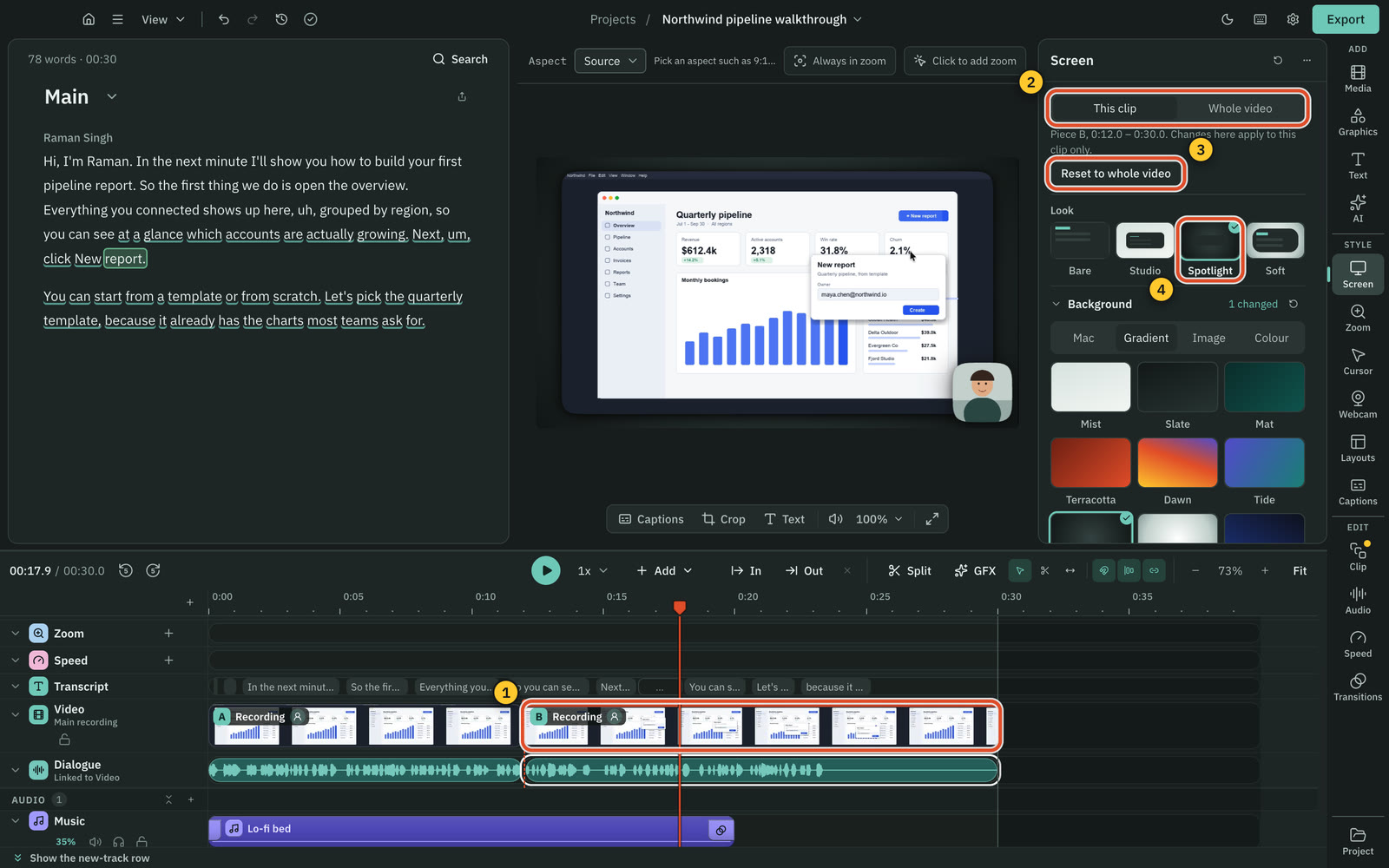
To change every clip while a clip is selected, press Whole video. The choice is kept for that clip and that panel only: select another clip and the panel starts on This clip again.
Take a clip back to the whole video
Once a clip has settings of its own, Reset to whole video appears under the switch. Press it to remove what this panel set for the clip. The reset button in the panel header and Reset this clip to whole video in the panel menu do the same.
Each panel resets only its own settings. Resetting the clip's screen look leaves its captions and sound as you set them.
What a clip can have of its own
| Panel | What one clip can change | What stays for the whole video |
|---|---|---|
| Screen | Background, Blur, Padding, Corners, Shadow, Look, the crop, Follow the cursor, and Frame this clip in a tall or square video | Aspect, because one file has one size |
| Cursor | Show pointer, the pointer style, Size, Movement, Advanced movement and the Clicks effect | Click sounds, which are mixed into the export once |
| Webcam | Show camera in this clip, Shape, Size, Position, Roundness, Shadow, Margin and Border | The camera Source, Mirror, the crop and the webcam passages |
| Captions | The style preset, font, size, colours, position, animation, and Captions in this clip to hide them | Characters per line and Lines per caption |
| Audio | Mute this clip and Volume (0 to 200%) for the recording's own voice | Music, other clips and the export loudness |
A clip only keeps what you changed for it. Everything else follows the whole video, so if a clip has only its own padding and you later change the whole video's background, the clip gets the new background too.
How to tell which clips have their own settings
- On the timeline, a thin accent line over the Video row marks a clip with settings of its own.
- While you edit the whole video with the playhead inside such a clip, the panel says "The clip at the playhead has its own screen settings, so changes here do not show there. Select that clip to change it."
- With Whole video on and the selected clip keeping its own settings, the line under the switch says so, for example "Piece B keeps its own screen settings."
Drag on the preview
Dragging on the preview follows the same switch:
- With This clip on, dragging the camera bubble or the caption card moves them for the selected clip, and Crop on the preview crops the selected clip.
- With Whole video on, or with nothing selected, a drag moves the bubble or card of the clip at the playhead if that clip has its own place for it, and the whole video's otherwise.
Copy a look to another clip
In the Screen panel menu, Copy look takes the look you see in the scope you are in, and Paste look puts it on the selected clip, or on the whole video when the switch is on Whole video. Crop and aspect are never copied.
Editing keeps the settings with the footage
- Splitting a clip keeps its settings on both halves. Select one half and change it to make the halves differ.
- Cutting words, deleting a piece and moving pieces keep each clip's settings with its footage.
- Undo and redo cover every change. The history names them, for example "Change clip screen".
Limits
- Aspect is for the whole video. With a clip selected, Aspect & crop says "Aspect is for the whole video: one file has one size. Crop and Follow the cursor are this clip’s."
- A webcam passage (Full screen or Hide over a selection) wins over a clip's own camera settings inside that passage.
- If the whole video mutes a recorded track, one clip cannot turn it back on.
Related
Was this page helpful?
Comments
Longer questions go better in the forum.
No comments yet. Ask a question or add what you found.
Sign in with GitHub or Google to comment.
Sign in to comment