What's new in 0.1 beta 19
Colors to grade your footage, video scopes, AI colour grading that looks at your video, .cube looks, and a menu bar icon while you record.
In version 0.1 beta 19 you can grade the colours of your footage in a new Colors panel, read them on video scopes, import a .cube look from another editor, and ask the AI to colour grade your video by looking at it. Each section below says what changed, where to find it, and links to its full page.
On a Mac, Cutscript downloads updates in the background and installs them when you restart. On Windows the Microsoft Store updates it. See Update Cutscript.
Colors
Press Colors in the right rail to grade the footage: Exposure, Contrast, Highlights, Shadows, Whites and Blacks under Light, and Temperature, Tint, Saturation and Vibrance under Color. Presets show your own frame through each look, from Bright and Warm to Teal & amber and Mono.
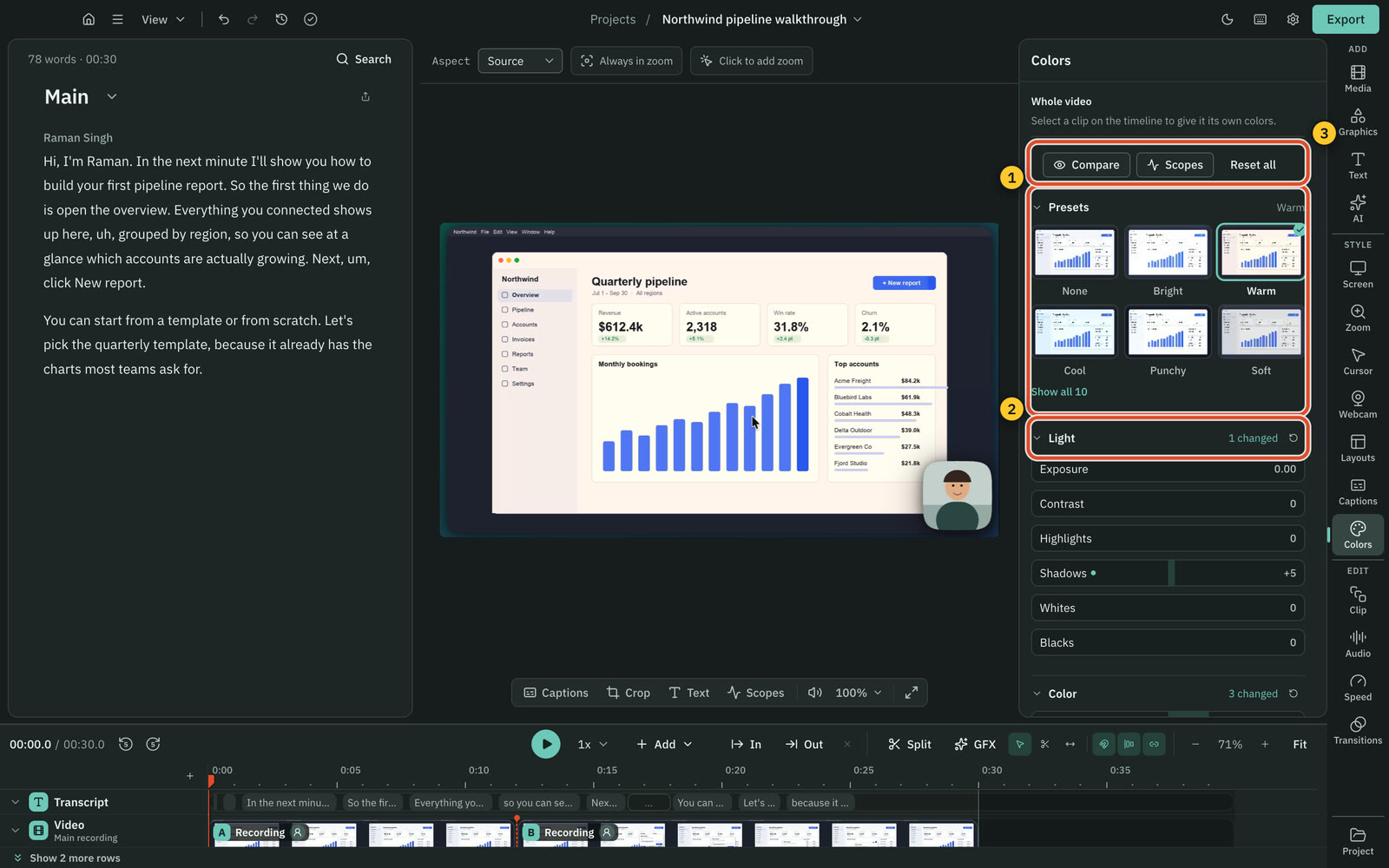
Color wheels tint the shadows, midtones or highlights, and Vignette darkens or lightens the edges. Compare shows the footage as recorded while you hold the grade up against it.
Colors changes the recording only, never the background, the camera bubble, the cursor or your graphics, and the export looks exactly like the preview. Select a clip and the switch at the top reads This clip, so one clip can have its own colours.
Read more in Colors and scopes.
Video scopes
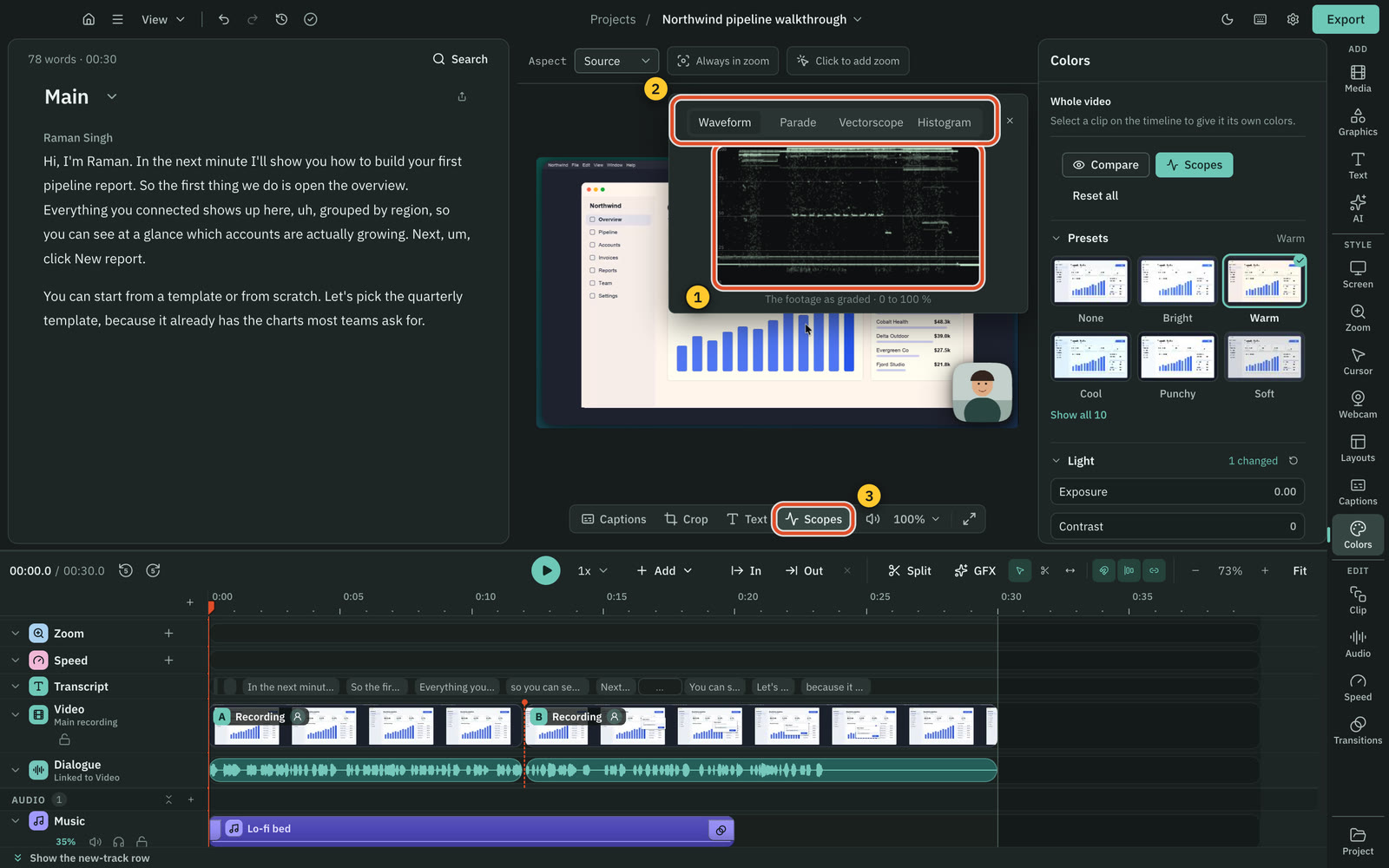
Press Scopes under the preview. A waveform, an RGB parade, a vectorscope with the skin-tone line, or a histogram shows the footage at the playhead as graded.
Read more in Read the scopes.
Grade with AI
Type "Color grade my video" in the AI panel, or ask for a style: warm, cinematic, moody. The AI looks at a few frames of your video and chooses a grade. Then it looks at the same frames again, before and with its grade, and corrects anything that is off. You see the price on the card before it runs, and you apply the result as one step in Undo.
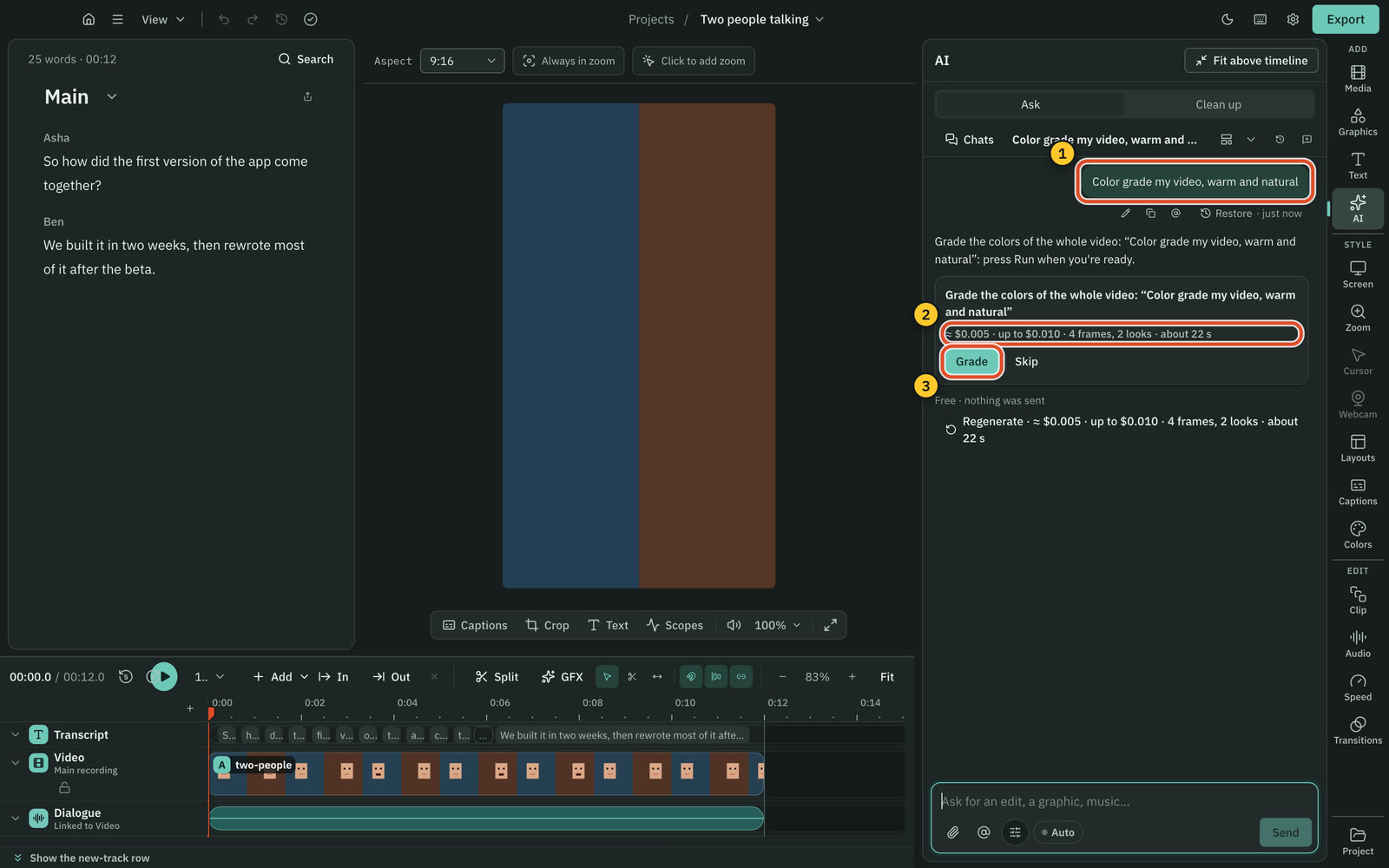
Smaller changes work in words too: "make it a bit warmer", "black and white", "use the Moody preset". The AI sets the sliders without taking any screenshots.
Read more in Grade with AI.
Import a .cube look
Look › Import .cube look brings in a LUT from Premiere Pro, DaVinci Resolve, Final Cut Pro or a look pack. Intensity sets how strongly it shows. Cutscript keeps a copy in your project.
Read more in Import a look.
Show Cutscript while you record
During a take, a Cutscript icon sits in the menu bar. Click it to bring the editor back, for example to record Cutscript itself. Right-click it for Show Cutscript and Stop recording.
Read more in Show Cutscript during a take.
Smaller changes
- Download from link waits out a stalled connection: it asks the site again up to ten times, picking up where the file stopped, and shows "Connection stalled, trying again" while it does.
- Marking In and Out on the timeline shows one clean range, without a second band or stripes across the tracks.
Was this page helpful?
Comments
Longer questions go better in the forum.
No comments yet. Ask a question or add what you found.
Sign in with GitHub or Google to comment.
Sign in to comment