Colors and scopes
Grade your footage with presets, light and colour sliders, wheels, a .cube look and a vignette, read the scopes, or let the AI grade it.
Colors grades the footage of your video: how bright it is, how much contrast it has, how warm or cool it looks and how strong its colours are. Use it to fix a dark or blue recording, to make a camera clip match the rest, or to give the whole video a look. The scopes show you the numbers behind the picture while you work.
Colors changes the recording only. The background, the camera bubble, the cursor, text, graphics, B-roll and captions keep their own colours. The export looks exactly like the preview.
Before you start
- Colors works on any project with a video picture. An audio-only project has no footage to grade, and the panel says so.
- Grading by hand needs no AI and no internet connection. Grade with AI needs an AI source with a vision model.
- A video with a grade exports as H.264 (MP4 or MOV). See Export.
Open Colors
- Open your project.
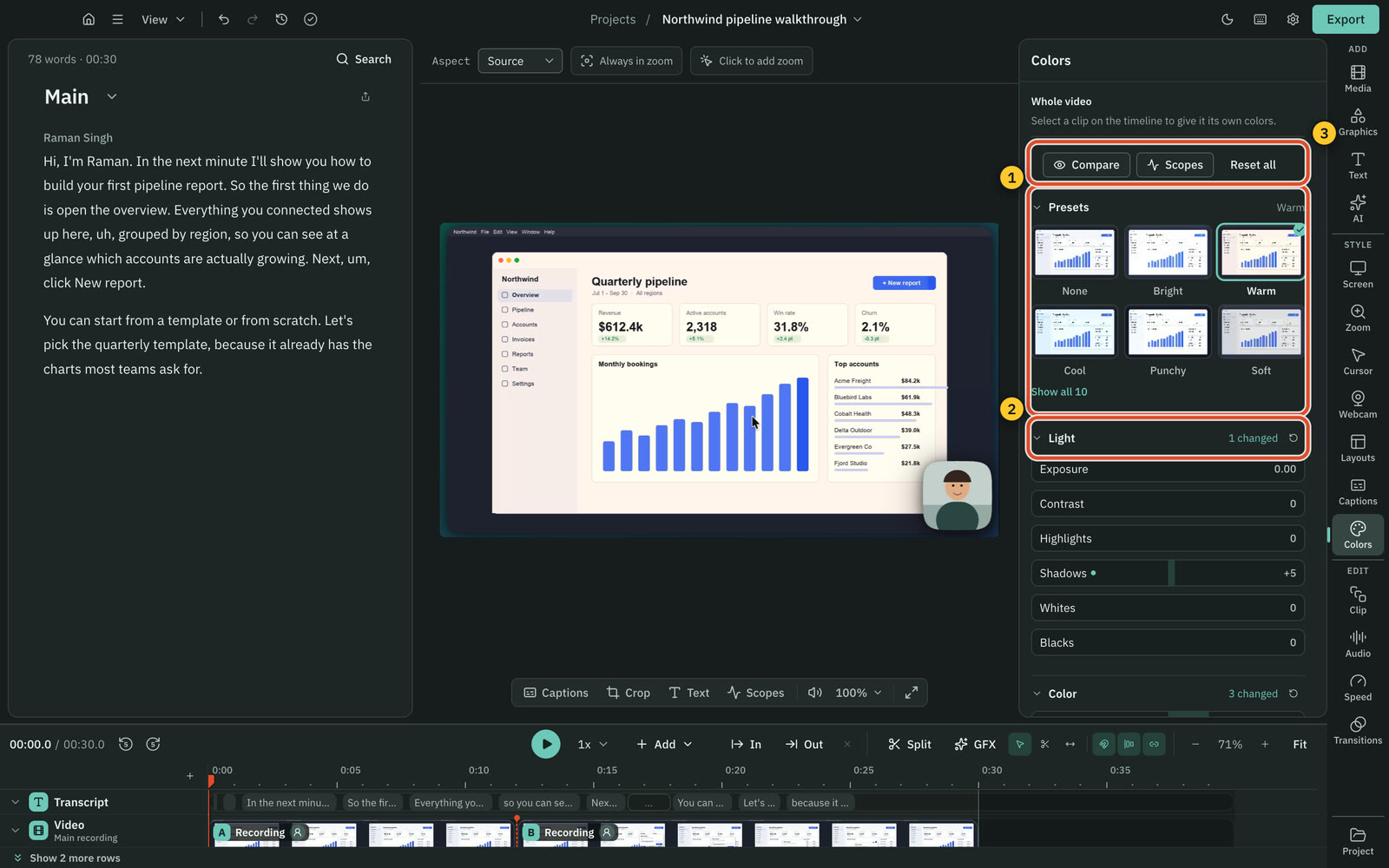
- Press Colors in the right rail, under Style.
- With nothing selected, the line at the top says Whole video. To grade one part only, see One clip or the whole video.
Start from a preset
The Presets tiles show the frame at the playhead through each look, so you see what each one does to your own video before you pick it. The tiles refresh when you stop the playhead somewhere new.
| Preset | What it does |
|---|---|
| None | The footage as recorded. |
| Bright | A little more light, lifted shadows, softer highlights. |
| Warm | Warmer, with a touch more colour. |
| Cool | Cooler, with a little more contrast. |
| Punchy | More contrast and stronger colours. |
| Soft | Less contrast, gentle highlights and shadows. |
| Teal & amber | Teal shadows and warm highlights, a film look. |
| Faded | Lifted blacks and softer colour, a vintage look. |
| Mono | Black and white. |
| Moody | Darker and cooler, with a vignette. |
Picking a preset sets the sliders, wheels and vignette below it. Change any of them afterwards: the preset is a starting point, not a lock. A look you imported stays when you pick a preset.
Light
| Slider | What it does |
|---|---|
| Exposure | The amount of light, in stops: +1 is twice as bright, −1 half. From −4 to +4. |
| Contrast | Pushes darks darker and lights lighter, around the middle. Negative flattens the picture. |
| Highlights | The bright parts. Pull it down to bring back a sky or a window that looks white. |
| Shadows | The dark parts. Push it up to see into a face in shade. |
| Whites | Where white sits. Up makes the brightest parts brighter. |
| Blacks | Where black sits. Down makes the darkest parts deeper, up fades them. |
Color
| Slider | What it does |
|---|---|
| Temperature | Negative is cooler (blue), positive warmer (amber). Use it when a recording looks too blue or too orange. |
| Tint | Negative is greener, positive more magenta. Use it for the green cast some lights give. |
| Saturation | How strong every colour is. 100 leaves it as recorded, 0 is black and white, up to 200. |
| Vibrance | Raises dull colours more than strong ones, so skin does not turn orange. |
Drag a slider to change it. Each drag is one step in Undo. Option-click a slider, or press the reset button that shows when you hover it, to put it back. The reset button in a group's header resets the whole group.
Color wheels
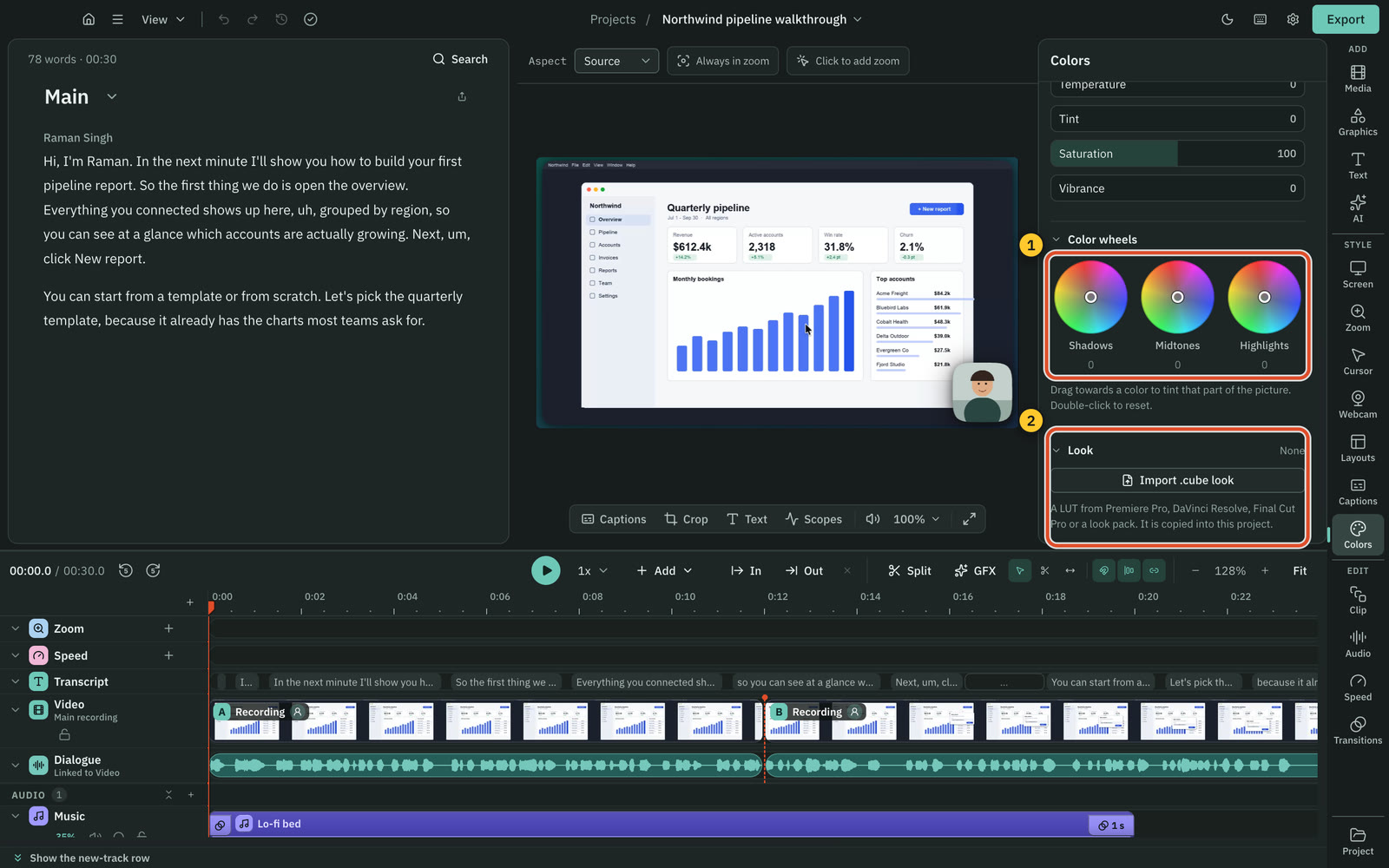
Open Color wheels to tint one part of the picture: Shadows, Midtones or Highlights.
- Drag the point towards a colour. The further from the middle, the stronger the tint.
- Double-click a wheel, or press Delete, to put it back in the middle.
With a wheel selected, the arrow keys nudge the point (hold Shift for bigger steps). A classic film look is teal in the shadows and warm in the highlights, which is what the Teal & amber preset sets.
Import a look
A look, or LUT, is a .cube file that maps every colour to a new one. Premiere Pro, DaVinci Resolve and Final Cut Pro can export one, and many look packs come as .cube files.
- Open Look and press Import .cube look.
- Pick the
.cubefile. - Set Intensity to choose how strongly the look shows (100% is the whole look).
Cutscript checks the file first. If it cannot use it, it says why, for example that the table is incomplete. Otherwise it copies the file into your project, so the grade keeps working if you move or delete the original. Replace picks another file, and the bin button removes the look.
The look sits after Light and Color and before the wheels, so correct the footage first and let the look style it.
Vignette
Vignette darkens (negative Amount) or lightens (positive) the edges of the picture. Size sets how far in it reaches and Feather how soft its edge is. Size and Feather wait until you set an Amount.
Compare with the original
Press Compare at the top of the panel to see the footage as recorded. It reads Showing original while it is on. Press it again to go back to the grade. Compare only changes what the preview shows: the grade and the export stay as they are.
Read the scopes
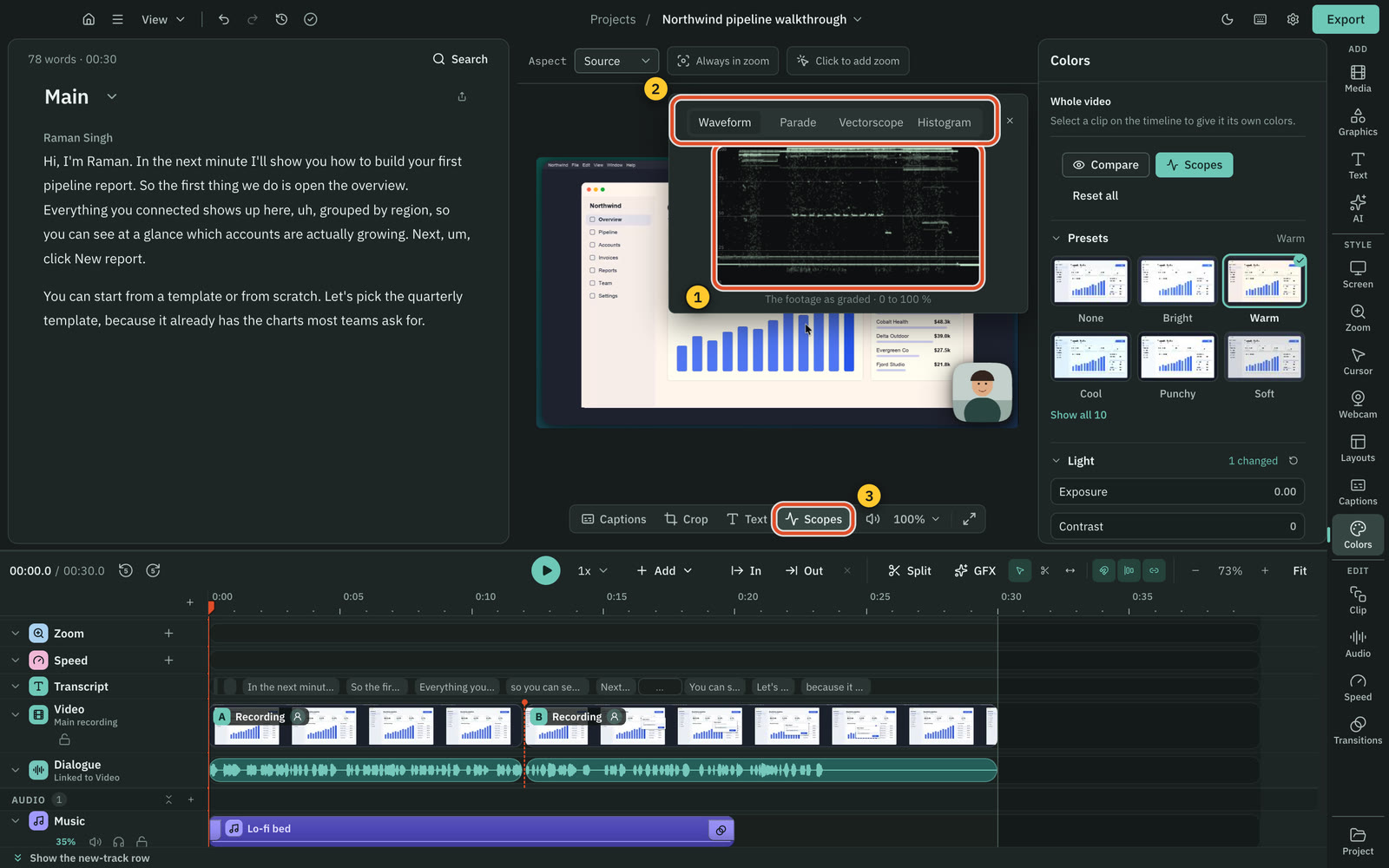
Press Scopes in the toolbar under the preview, or in the Colors panel. The scopes open in the top-right corner of the preview and follow the playhead. They read the footage as graded, not the background or the camera bubble, so they describe the recording itself. With Compare on, they read the footage as recorded.
| Scope | How to read it |
|---|---|
| Waveform | The brightness of every column of the picture, from 0 at the bottom to 100 at the top. Faces usually sit a little above the middle. Anything flat on 100 is white with no detail; anything flat on 0 is black. |
| Parade | The same for red, green and blue side by side. If the three are at different heights where something should be white or grey, the picture has a colour cast. |
| Vectorscope | Every colour as a dot: the angle is its hue, the distance from the middle its strength. Grey sits in the middle. The six boxes are the targets for strong red, magenta, blue, cyan, green and yellow, and the line is where skin sits, whatever its tone. |
| Histogram | How many pixels have each level of red, green and blue, from dark on the left to bright on the right. |
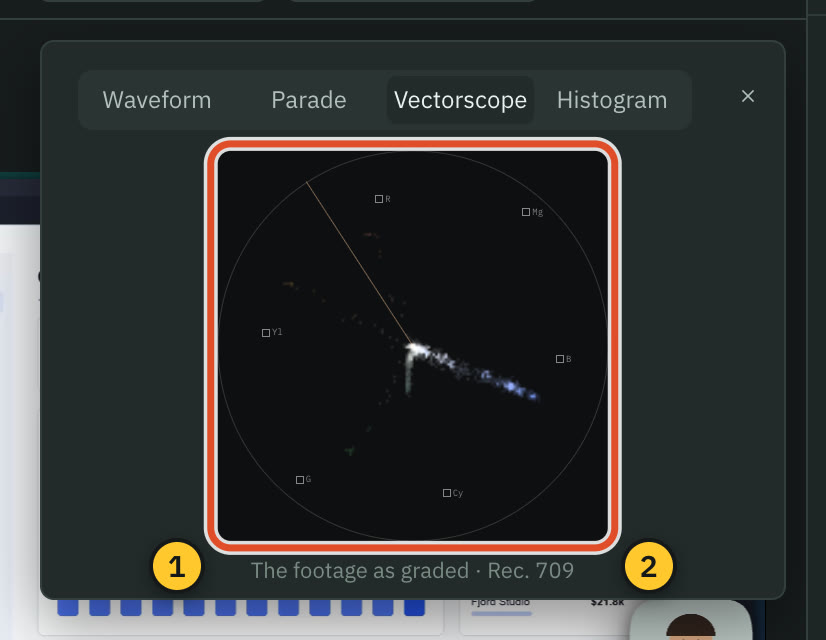
Pick a scope with the tabs at its top. Cutscript remembers your choice. Close it with ×.
One clip or the whole video
Colors works like the other style panels: select a clip on the timeline, words in the script or an In and Out range, and the switch at the top reads This clip. Grade it, and only that clip changes. Whole video grades every clip again. Reset to whole video takes the clip's own colours away. A clip keeps only the settings you changed for it, so if it has its own Temperature and you later change the whole video's Contrast, the clip gets the new contrast too. See Settings for one clip.
Grade with AI
The AI can grade your video by looking at it. It takes a few screenshots across the part you grade, looks at them with the grade that is there now and chooses a grade. Then it looks at the same frames again, before and with its grade applied exactly as the editor will show it, and corrects its choice if something is off, such as a colour cast, skin that is too orange, or highlights that turned white.
Before you start
- An AI source with a vision model. Grading uses the vision model in Settings › AI › AI director, on your OpenRouter key, your ChatGPT plan or your Claude plan. If the model cannot look at pictures, the card says so and names one that can.
Grade the video
- Open the AI panel and type what you want, for example "Color grade my video", "fix the colors", or a style: "color grade my video, warm and cinematic".
- Press Send. Nothing is spent yet: a card titled Grade the colors shows the price, how many frames it looks at and about how long it takes.
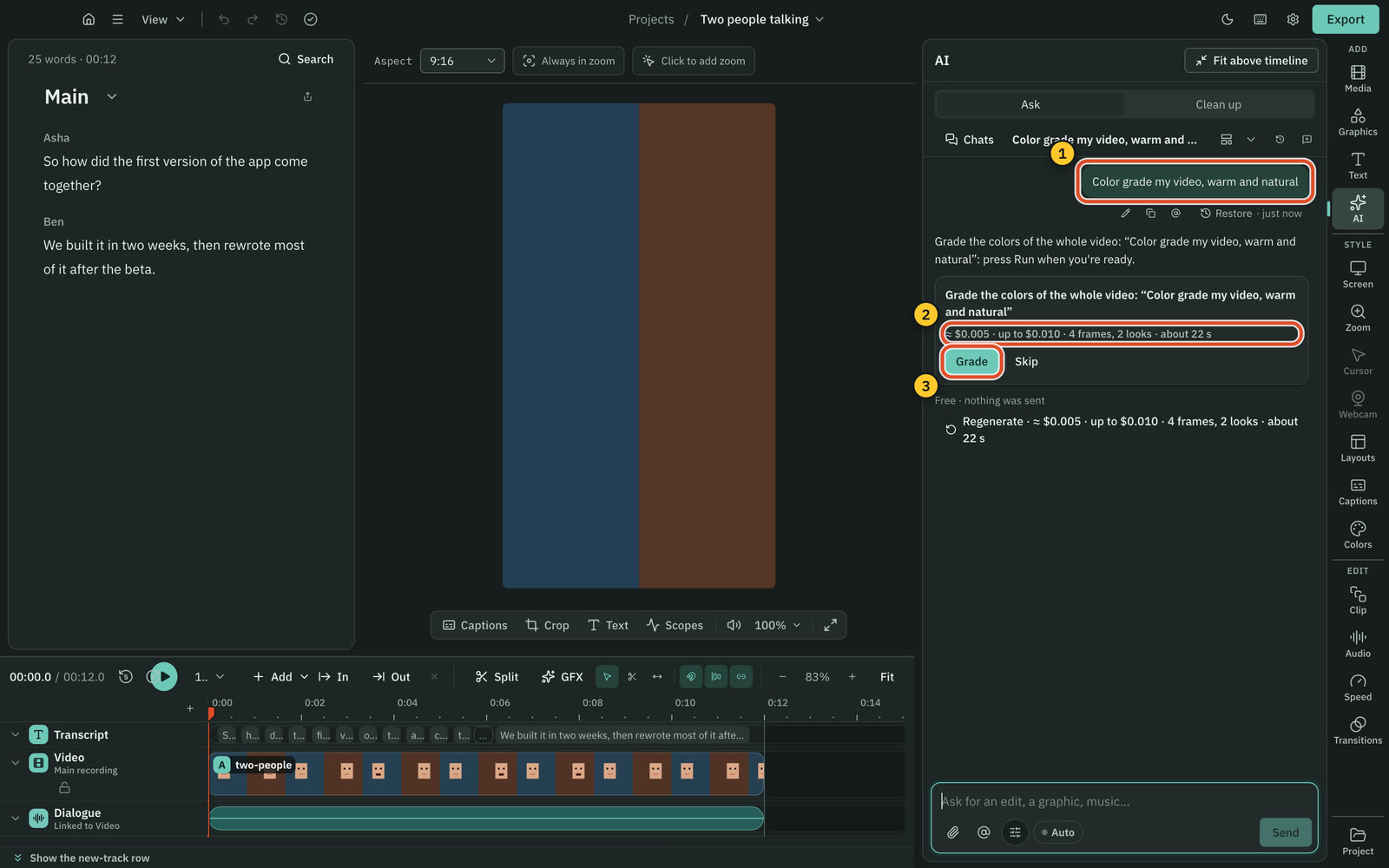
- Press Grade. A whole video gets four frames; a short part gets fewer.
- When it is done, the card says what it changed and why, how many times it looked, what it cost and how long it took. Press Apply to put the grade on the video, or Discard.
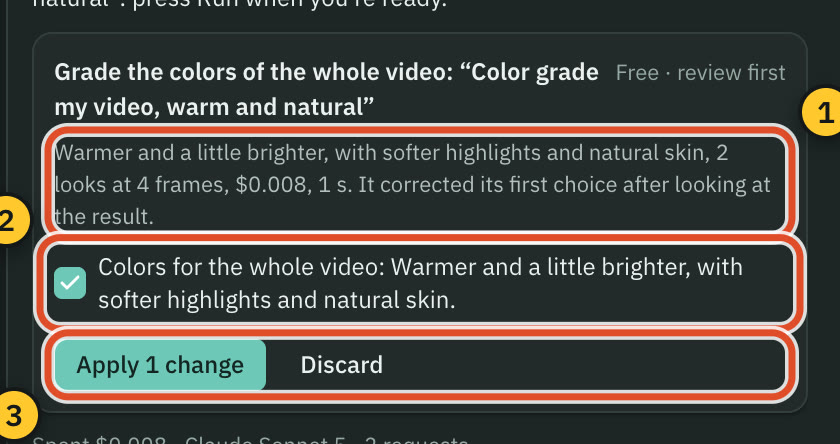
Applying is one step in Undo. The result is ordinary Colors settings, so open Colors to adjust any slider. A look you imported stays as it is.
To grade one part, say where: "fix the colors from 0:10 to 0:40", or select a clip or an In and Out range and say "colour grade this clip". That part gets its own colours.
Small changes in words
For a change you can put into words, ask the AI without the screenshots: "make it a bit warmer", "a little brighter", "black and white", "use the Moody preset", "remove the look". The AI sets the sliders from what is there now, and you apply the card as usual. No pictures are sent, so this costs what an ordinary message costs; the line under the message box shows it before you send.
Export
A video with a grade is drawn frame by frame, so it exports as H.264 in an MP4 or MOV file. The other formats show why they are not available while a grade is set. Audio, subtitle and transcript exports are not affected. The exported colours match the preview, and the export is tagged as standard HD video (Rec. 709), so players show it the same way.
Tips for a good grade
- Correct first, then style. Set Exposure and Temperature so the footage looks natural, then pick a look or a preset.
- Watch skin. On the vectorscope, skin should sit along the skin line. If it leans towards red or yellow, adjust Temperature or Tint a little.
- Keep detail. On the waveform, keep the brightest parts just under 100 with Highlights or Whites unless you want them white.
- Use Compare often. A grade that looks right after ten minutes can be too strong. Compare shows you where you started.
Related
Was this page helpful?
Comments
Longer questions go better in the forum.
No comments yet. Ask a question or add what you found.
Sign in with GitHub or Google to comment.
Sign in to comment