The face in your video
Click a face in the preview to give it its own colours, or detach it as a bubble that follows it, on its own Face track.
When your video shows a person, Cutscript treats their face as a layer of its own. Click the face in the preview to open its settings. Give it its own colours, such as a little more light on a face in shade, without changing the rest of the picture. Or detach it from the screen, so the face becomes a bubble that follows the person as they move, with its own track on the timeline.
Before you start
- Cutscript finds the faces on this computer. Nothing is uploaded and it costs nothing.
- It starts by itself a few seconds after you open a project with a video, once per video. It shows in the jobs list as Finding faces, and stops while an export or a recording runs.
- Faces seen from far away, side on or half covered can be missed. A face Cutscript did not find gets no colours and cannot be clicked.
- A video with face colours exports as H.264, as a video with Colors does.
Open Face
- Open your project.
- Click a face in the preview, or press Face in the right rail, under Style.
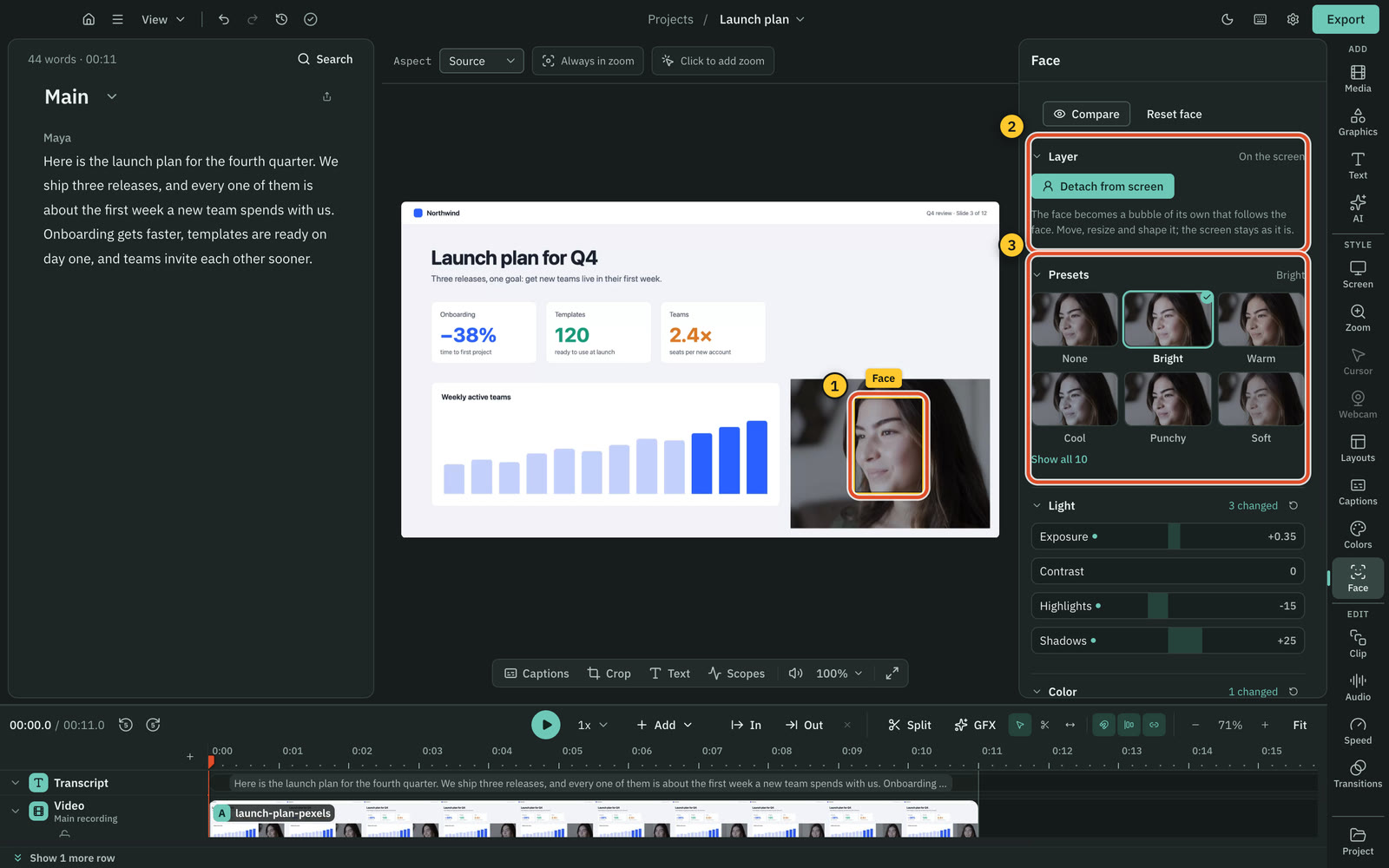
If Cutscript has not looked at this video yet, the panel says Find the faces in this video. Press Find faces. While it looks, the panel shows how far it has got, and Stop stops it. If the video has no face it found, the panel says No faces in this video, and Look again looks a second time.
A click beside the face selects the screen recording, as before. With a range selected and a frame shape such as 9:16, a click on the face reframes that range, the same as a click anywhere on the recording.
Give the face its own colours
The face's colours sit on top of the colours of the whole video from Colors. They fill a soft oval round each face that follows it as it moves, so there is no hard edge.
- Pick a tile under Presets. The tiles show the face at the playhead through each look. If the playhead is on a moment without a face, move it to one to see them.
- Fine-tune with the sliders:
| Group | Sliders |
|---|---|
| Light | Exposure, Contrast, Highlights, Shadows |
| Color | Temperature, Tint, Saturation, Vibrance |
Each slider works as it does in Colors. A face in shade usually wants a little more Exposure or Shadows. Skin that looks too orange wants a little less Temperature or Saturation.
Compare shows the footage as recorded while you hold it up against your changes. Reset face takes the face's colours away. When a video has more than one person, the face colours apply to every face.
Detach the face from the screen
Detaching makes the face its own picture: a bubble cut from the video that follows the face as it moves. The screen stays as it is. Use it to keep the speaker visible while you zoom into a slide or a demo, or to turn a camera corner that was recorded into the screen into a proper bubble.
There are three ways to detach it:
- In Face, under Layer, press Detach from screen.
- Right-click the Video row's header on the timeline, or any part of the main track, and choose Detach face.
- Drag the face in the preview to where you want it. It comes out as a bubble and lands where you let go.
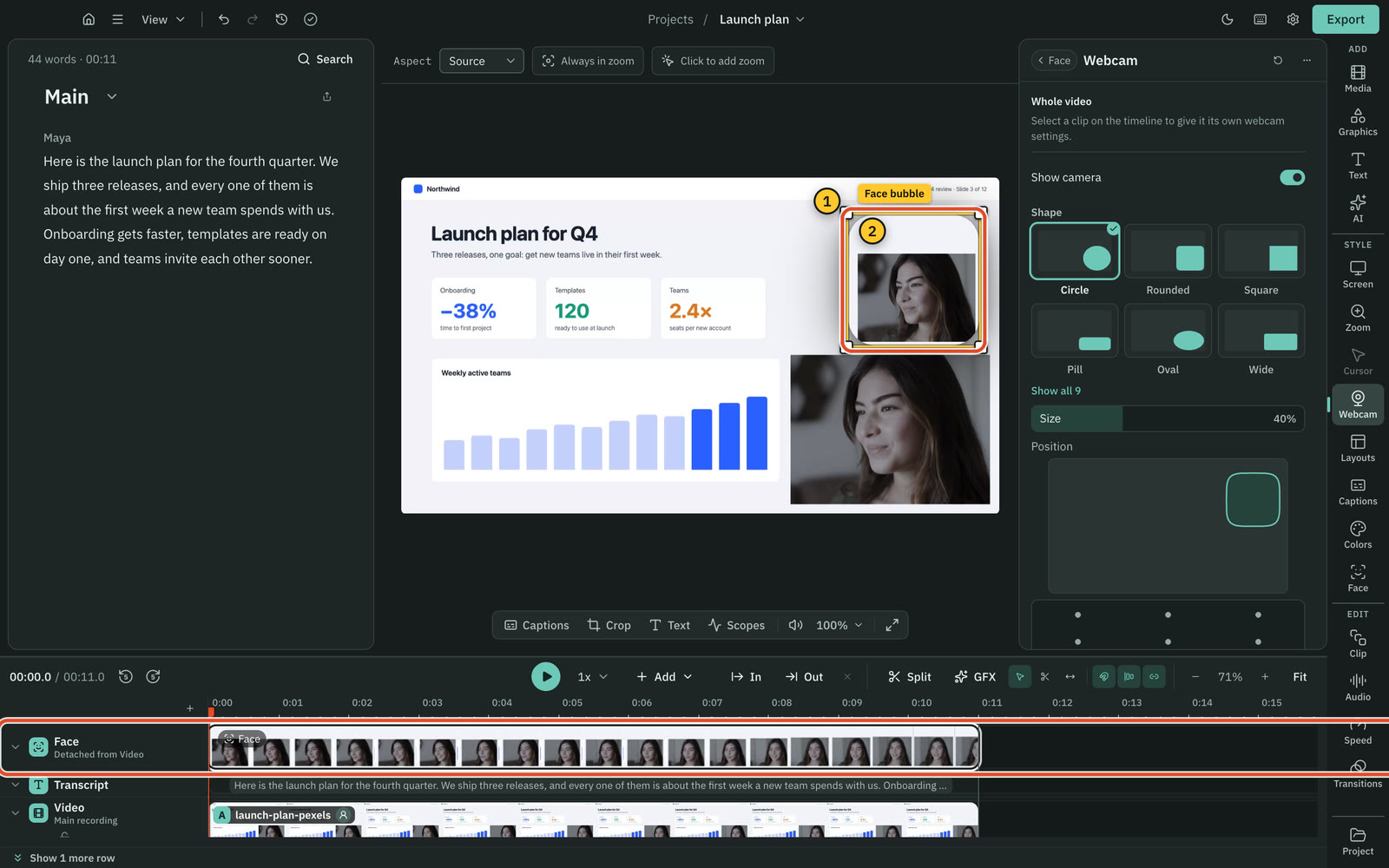
The bubble is the same as a camera bubble: drag it anywhere on the preview, drag a corner to resize it, and set its shape, border and shadow under Bubble settings, which opens Webcam. There the source reads The face. The face's colours apply in the bubble too.
A project that already has a camera bubble from a recorded camera cannot detach the face, because the face is already in the camera. Detach face says so.
The Face track
When the face is detached, a Face track appears on the timeline, right above the recording. It shows the face in each frame, so you can see where the person is and when.
- Click the track to select the bubble.
- Drag either end to choose when the bubble shows. Outside the track, the bubble is hidden.
- Right-click for Hide before the playhead, Hide after the playhead and Delete this part. Put the playhead inside the part first.
- Delete removes the part you selected. Deleting the last part puts the face back.

Put the face back
Press Put back on screen in Face, Put face back on the Face track's header or in the main track's menu, or Put the face back on the screen in Webcam. The bubble goes and the face stays in the video as it was. Its colours stay.
Everything here is one step in Undo, including a drag that pulls the face out.
Ask the AI
In the AI panel, ask in your own words. These changes are free: the AI sets the numbers without taking screenshots.
- "Make my face a little brighter"
- "Warm up the skin tones"
- "Use the Soft preset on my face"
- "Detach my face" or "put my face back"
The AI shows a card with the change. Nothing changes until you apply it.
Related
Was this page helpful?
Comments
Longer questions go better in the forum.
No comments yet. Ask a question or add what you found.
Sign in with GitHub or Google to comment.
Sign in to comment