Remove background
Remove the room behind a person in any video, or only in the part you select, on your computer, with no green screen. Comes with Cutscript Pro.
Remove background takes away the room behind a person in a video, with no green screen.
Use it on the camera, the main video or a B-roll clip, then stand the person on your screen recording, a blur of the room, a plain colour or a picture. It applies to what you select: a clip, words or In to Out, or the whole video when nothing is selected. To do this, Cutscript goes through that part once and makes a mask for each frame: a small picture of where the person is.
Before you start
- It comes with Cutscript Pro. On the free plan the group shows, but the switch starts nothing. See It comes with Cutscript Pro.
- It runs on your computer. Nothing is uploaded, and it needs no AI account. See It runs on your computer.
- Only the part you select is processed. With nothing selected, that is the whole video. See Use it on part of a video.
- It works on people only. Where a video has no person in the picture, none of that video shows, only what is behind it.
- It takes time and disk space, each job takes a few seconds to start, and a video export waits until it has finished. See How long it takes and how much disk it uses.
- The result depends on the video. Hair and busy backgrounds can leave soft edges or bits of the room, and clear objects can look see-through. See What makes a good result.
Which videos it works on
| Video | What it covers | Where to find it |
|---|---|---|
| Camera | The camera video: the one you recorded, or one you picked with Use a video as the camera…. The part you select, or all of it when nothing is selected. | Webcam and face |
| Main video | The part you select, or all of it when nothing is selected. | Webcam and face, or Clip with a piece of the main video selected |
| Selected clip | One B-roll or overlay video clip, all of it. | Clip with the clip selected, or Webcam and face while it is selected |
Those three names are the chips under Applies to, which shows when there is more than one video to choose from. A line under them says what the switch reaches, such as "Applies to the whole camera video. Select a clip, words or In and Out to use it on just that part."
Each video keeps its own settings. If you use one file more than once, those uses share one set of masks, so a part they share costs the time and the disk space once.
A detached face does not offer it and keeps showing the room. A clip on a locked track shows how far it has got, and you cannot change it until you take the lock off the track.
Turn it on
- Open your project.
- To use it on one part, select that part: a piece on the timeline, words in the script, or In and Out. With nothing selected, it applies to the whole video. See Use it on part of a video.
- Press Webcam and face in the right rail, under Style (
⌘ 8). Remove background is the first group. - If you see Applies to, pick the video.
- Turn on Remove background. On the whole camera video or on a clip, Chroma key turns off, because only one of the two can run at a time.
- Keep working while it goes through the part you chose. Each job takes a few seconds to start, and the line stays at 0% until then. After that it says "Removing the background" with how far it has got, and the time left once it can tell, such as "About 3 min left". The parts it has finished show in the preview.
- Under Behind the person, pick what goes behind the person. See What goes behind the person.
- Wait for the line to say Ready. You can then export.
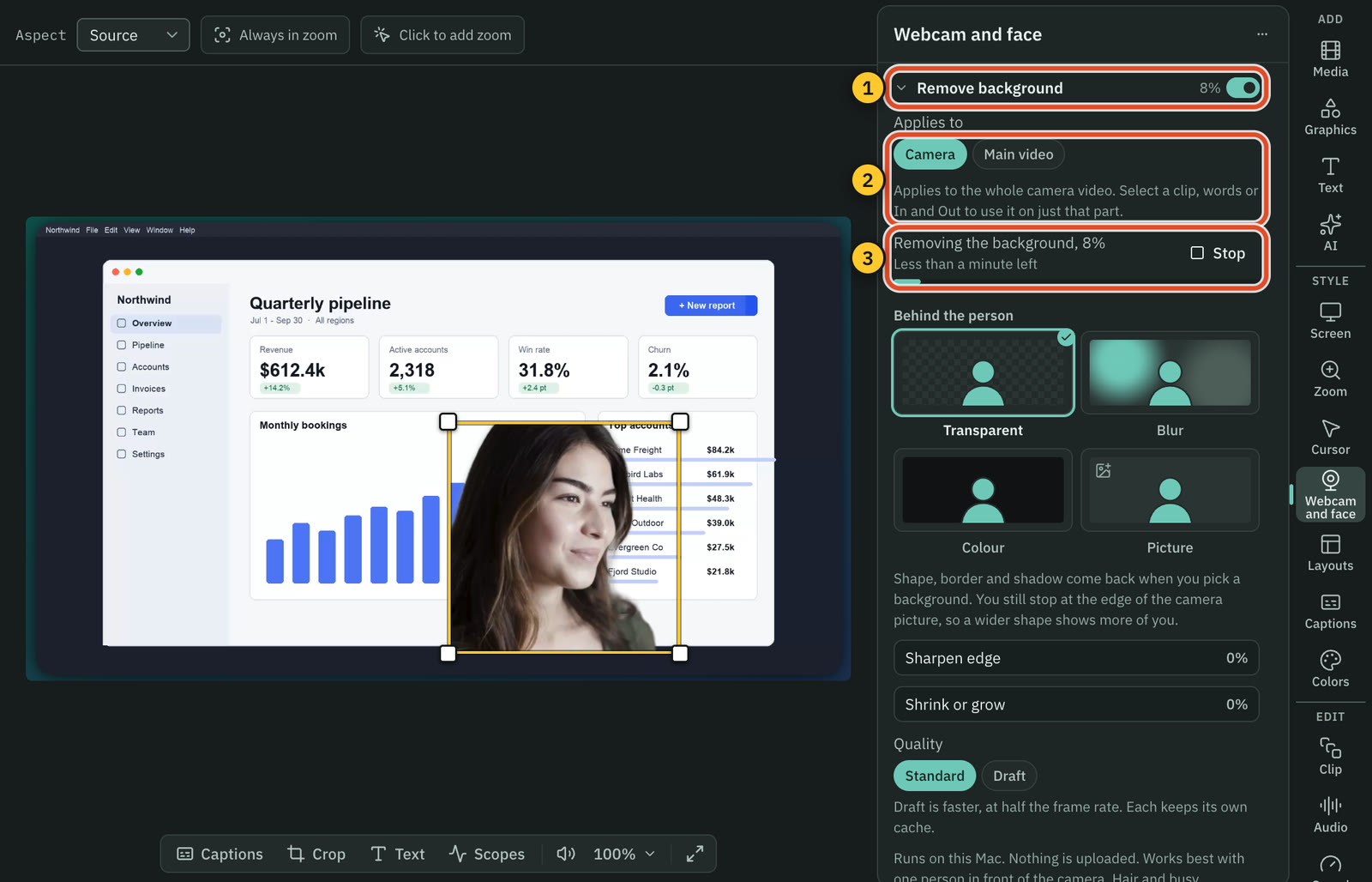
On a B-roll clip
Select a B-roll clip on the timeline, and Clip opens with the same group. There it applies to that clip alone, and the line says "Applies to this clip." Only the part of the file the clip plays is processed. If you drag its edges wider later, the line says how far the wider clip has got, such as "Stopped at 53%", and Continue makes the rest.
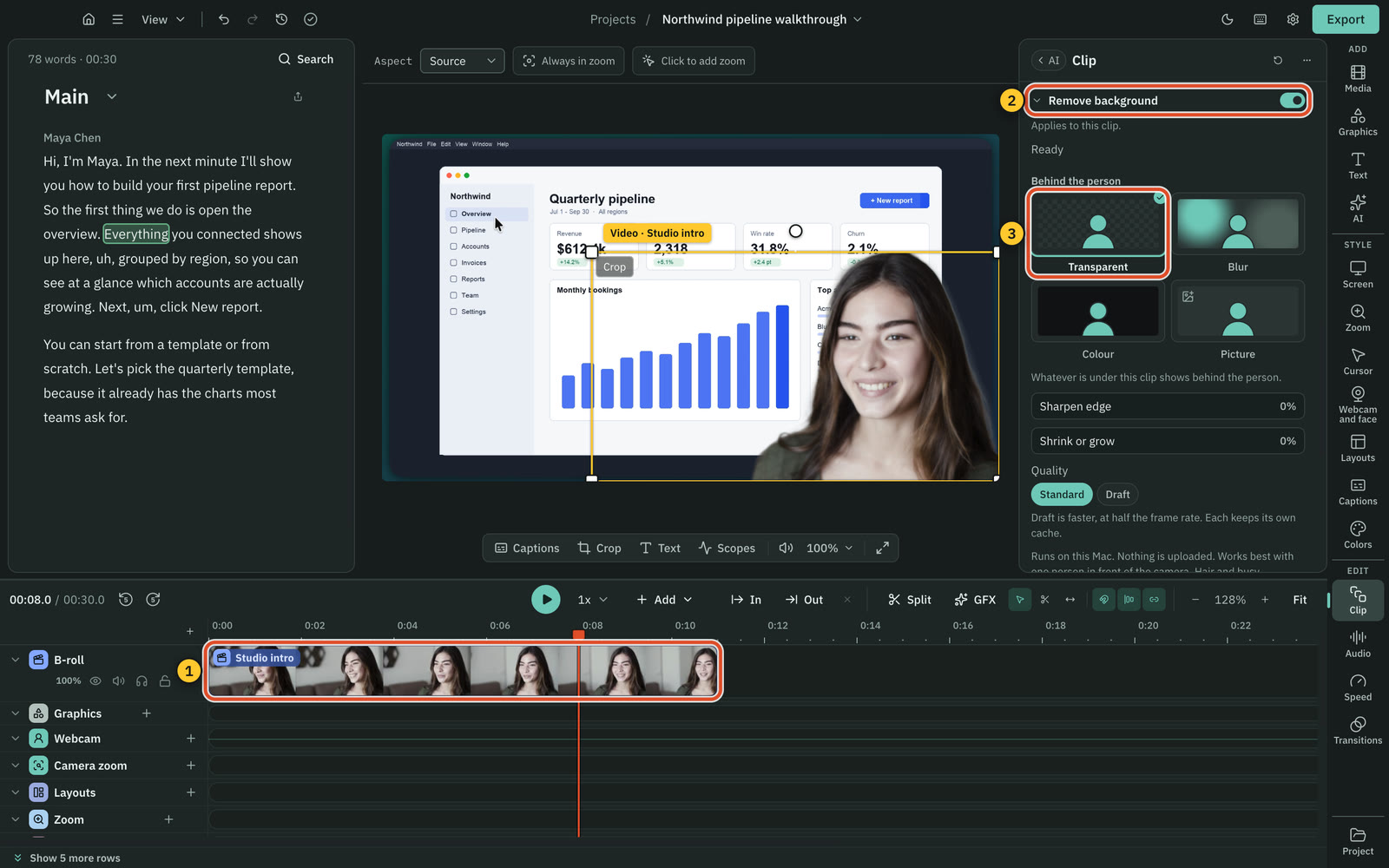
Use it on part of a video
Remove background applies to what is selected, as the other style settings do. A whole clip selected covers that whole clip, and nothing else.
Only the selected part is processed. If you select 20 seconds of a one hour video, you wait for those 20 seconds and store the masks for those 20 seconds, not the hour.
| You select | The tab | The line, for the main video |
|---|---|---|
| A piece of the main video on the timeline | This clip | "Applies to this clip only: Piece B, 0:12.0 – 0:30.0." |
| Words in the script | Selected words | "Applies to the selected words only: 0:04.0 – 0:08.0." |
| In and Out on the timeline | In to Out | "Applies from In to Out only: 0:05.0 – 0:10.0." |
| Nothing | No tabs: it is the whole video | "Applies to the whole main video. Select a clip, words or In and Out to use it on just that part." |
For the camera, the same lines read "Applies to the camera during this clip only", "Applies to the camera during the selected words only", "Applies to the camera from In to Out only" and "Applies to the whole camera video". On the camera, these tabs and the ones under the Camera heading are one choice, so pressing either moves both.
Selecting a piece on the timeline opens Clip, which has this group for the main video. For the camera, press Webcam and face with the piece still selected.
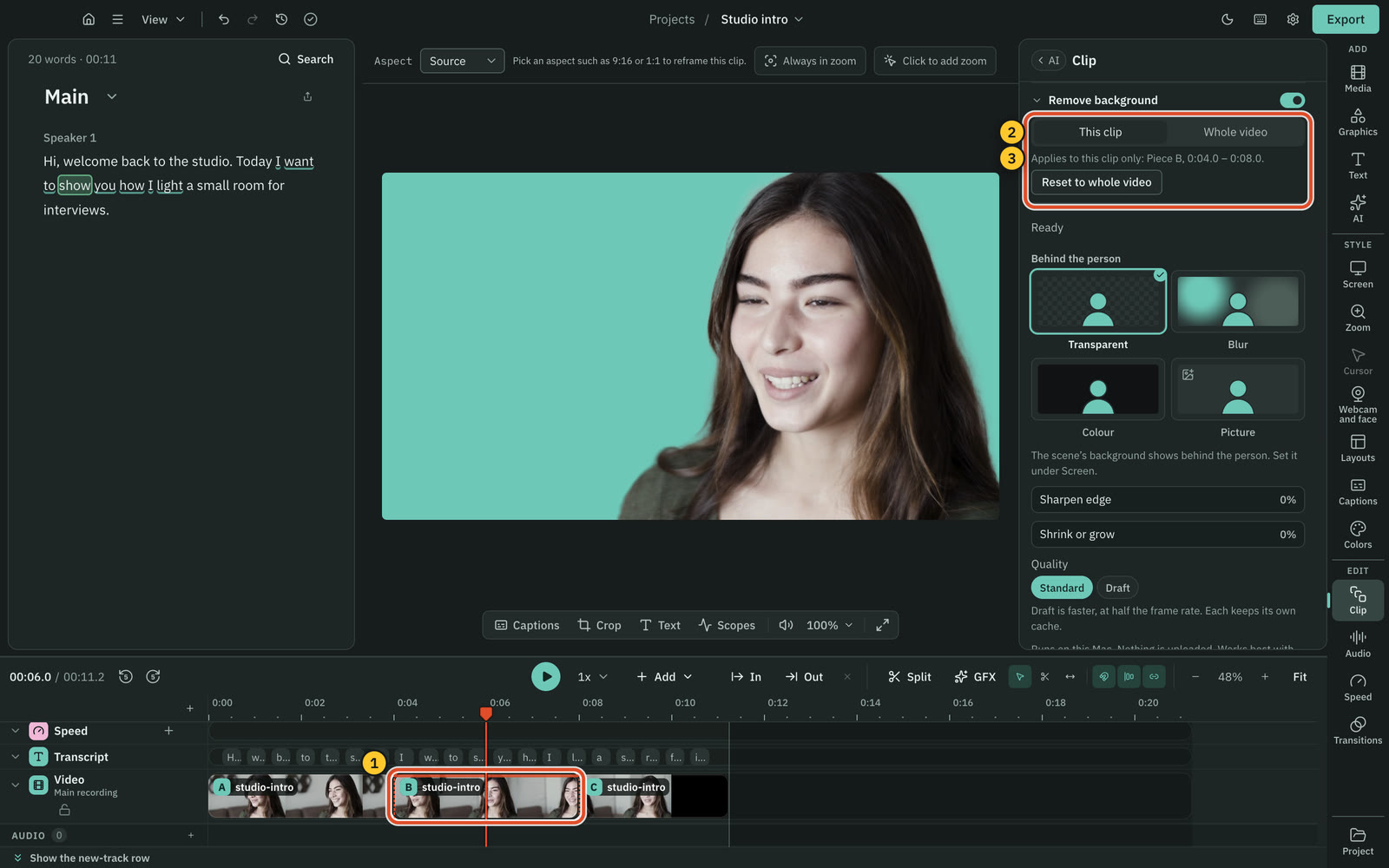
Beside the part's tab is Whole video, which changes the whole video while the part stays selected. If the part has its own setting, the line says so, such as "Applies to the whole main video. Piece B keeps its own setting." With the group folded, its head shows the same word as the tab.
- The switch and the status are about the part. The percent, the time left and Ready count what that part needs, not the whole file.
- A part can differ from the whole video either way. It can be on for one part with the whole video off, and then only that part is processed. Or it can be off for one part with the whole video on, and then the whole file is processed, that part included.
- Reset to whole video shows under the line once the part has its own setting. Press it and the part follows the whole video again. Its masks stay in the cache.
- The edges are hard cuts. The room goes on the part's first frame and comes back after its last, with no fade.
- A little extra is made. Cutscript also makes about 1 second either side of the part, or as long as the project's longest transition if that is more, so a transition at the edge has masks to read.
The group tells you where else it is on:
| Where you are | What the line says |
|---|---|
| Nothing selected, on for parts of the video | "On for 1 part of this video. Select it to change it." With more than one: "On for 2 parts of this video. Select one to change it." |
| Another part selected, off there | "Also on for 1 part elsewhere in this video." |
| One part off, with the whole video on | "Still on for the rest of this video." |
If you change the selection
The group shows the setting where the selection starts.
- A narrower selection inside a finished part needs nothing new, and the line says Ready.
- A wider selection that starts inside the part reads as on, but the setting does not reach the new stretch yet. The line says how far the wider selection has got, such as "Stopped at 53%", and under it "On for part of this clip. Continue covers all of it." Press Continue and Cutscript makes what is missing and puts the setting across the whole selection, as one step in Undo. Until you press it, the new stretch keeps the room.
- If the masks for the wider selection are already there, the line says "On for part of this clip" in place of Ready, and Apply to all beside it puts the setting across the whole selection. With words or In and Out selected, it says "On for part of the selected words" or "On for part of In to Out".
- A wider selection that starts outside the part reads as off. Turn the switch on, and it covers the whole selection.
If you turn off the whole video while its job runs and a part is still on, the job goes on with only that part. What it already made stays.
What goes behind the person
Under Behind the person, pick one of four. Changing this never runs the job again.
| Choice | What shows | Pick it when |
|---|---|---|
| Transparent | Whatever is already underneath. It depends on the video: see What Transparent shows. | You want the person standing on your screen recording, the scene or another clip. |
| Blur | A blurred copy of the same video. Strength sets how much, and starts at 50%. | You want to keep the room's colours and soften its detail. |
| Colour | One plain colour. Pick a swatch, type a hex value, or press the plus for more colours. | You want something plain, or a colour of your own. |
| Picture | An image from your project, filling the space and cropped to fit. Pick a tile, or press Import image…. | You want another place behind the person. |
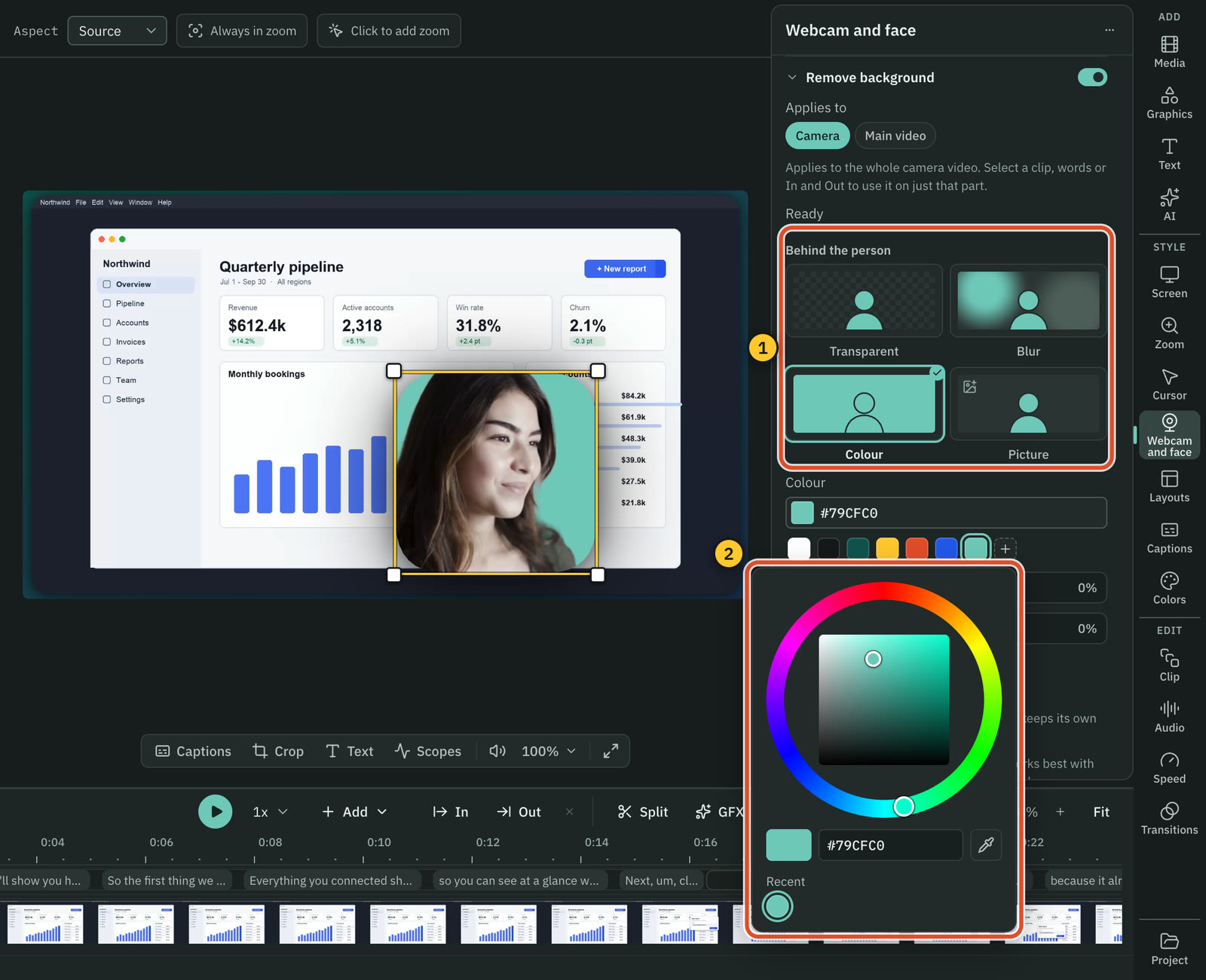
Two things to know when you choose:
- Blur shows its limits most. The blur is made from the whole picture, with the person in it, so dark hair can smear into the room as a dark shadow beside the person. It spreads as Strength goes up: in one test on a close-up, it stayed close to the hair at 30%, reached further at 50%, and at 100% it darkened a wide part of the room beside her. If the room is already out of focus, Blur can look close to the video as it was.
- Anything dark shows the edge most. A bright wall can leave a pale glow round the hair, which stands out on a dark colour or picture, and Colour starts almost black. See Sharpen edge and Shrink or grow.
A Picture you have not chosen yet, or one you removed from the project, draws the plain colour instead.
What Transparent shows
| Video | What shows behind the person |
|---|---|
| Camera | The screen, with no bubble around the person. Shape, border and shadow come back when you pick one of the others. You still stop at the edge of the camera picture, so a wider shape shows more of you. |
| Main video | The scene's Background, set under Screen. |
| Selected clip | Whatever is under the clip. |
The person still covers what is underneath. In one test a close-up filling the frame hid more than a third of the screen recording under it, so you may want to move it or make it smaller.
Transparent is about what shows inside your project. An exported video has no alpha channel, so the file itself is never see-through.
Sharpen edge and Shrink or grow
The edge of the person is where most flaws show. Two sliders change it, and neither one goes through the video again.
- Sharpen edge firms a soft edge. It runs from 0%, the edge as it was made, to 100%.
- Shrink or grow moves the edge. It runs from -100% to +100%, with 0% in the middle. Below 0% pulls the edge in, which takes away a glow of the room. Above 0% lets it out, which brings back fine hair, along with more of any glow.
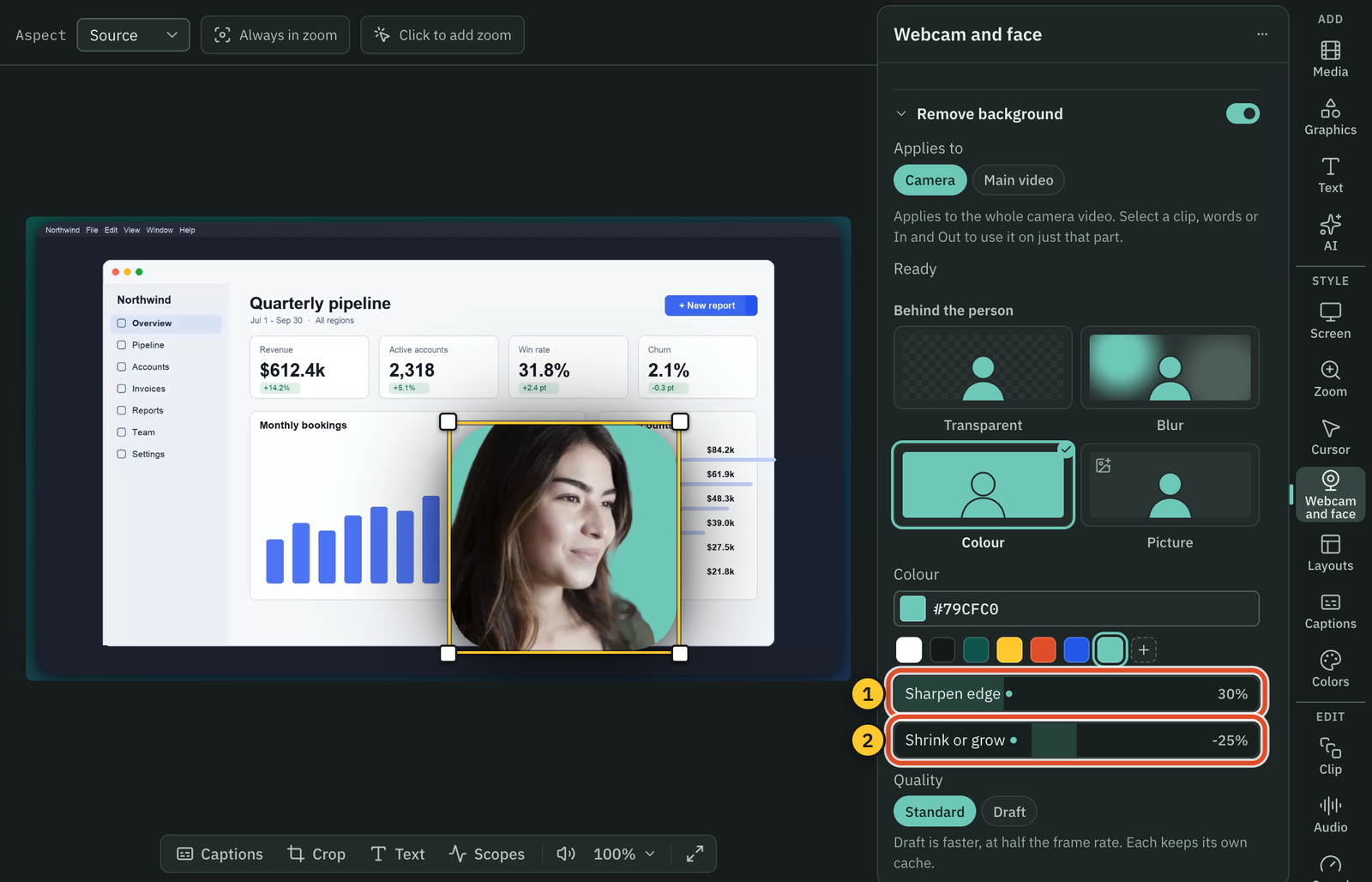
For hair against a bright wall, a place to start is Sharpen edge at 30% and Shrink or grow at -25%. In one test on a close-up, on an almost black colour, that thinned the glow to a thin pale line round the head and a few ragged pale bits by the shoulders. It did not take it away.
Each drag is one step in Undo.
Standard and Draft
Quality sets how many masks Cutscript makes.
- Standard makes one mask for each frame, up to 30 a second. A 60 fps video gets 30.
- Draft makes half as many. It is faster and takes about half the space, but the edge updates less often when the person moves.
Each keeps its own cache, so you can go back without starting over. With Remove background on, picking the other one starts its job, unless it has already finished.
Tip: On a long video, try Draft first to see whether the result suits you, before you spend the time on Standard.
How long it takes and how much disk it uses
It costs time and disk space once for each part of a video file, at each quality. Only the selected part is processed, so the length of that part counts. With nothing selected, it goes through the whole file, including parts your edit cuts, so the length of the file counts, not the length of your edit. Cuts, speed changes and moving a clip need no new run, because the masks belong to the file.
Time
We timed this on one computer, a Mac with an M2 Max, so treat the numbers as a guide. A slower computer takes longer.
| What runs | Time |
|---|---|
| Standard on Apple silicon | 8.5 seconds for a 10 second clip, so about 8.5 minutes for 10 minutes of 30 fps camera |
| Draft on Apple silicon | About 6 seconds where Standard took about 9.6, on one 11 second clip |
| The processor only | About twice as slow, on that same Mac |
| Windows | Not measured |
Each job takes a few seconds to start, and a job with several separate parts starts again for each one. So a very short part takes longer than its length suggests. The times above include one start.
We have not measured how long it takes on Windows, so we give no number for it. Windows uses the graphics card when it can, and the processor when it cannot. An Intel Mac uses the processor, and we have not timed one either. On Apple silicon, the processor also takes over for a file the faster route cannot open, such as a WebM.
Draft makes half as many masks, but on that clip it saved about a third of the time, not half. We have not timed it on a long video, on the processor or on Windows.
If a job has to fall back to the processor, the panel says "Running on the processor, so it takes longer." While it runs, the panel shows the time left once it can tell.
Disk space
| 10 minutes of 30 fps video | At Standard |
|---|---|
| A moving clip | About 157 MB |
| A still clip | About 130 MB |
Draft takes about half of that. A part you select stores masks for that part only. The masks stay in the project's cache folder until you clear it. See Get the disk space back.
Stop and continue
Press Stop at any time. The finished parts stay, the line says how far it got, such as "Stopped at 43%", and Continue goes on from there. The percent counts what the part you selected needs, not the whole file.
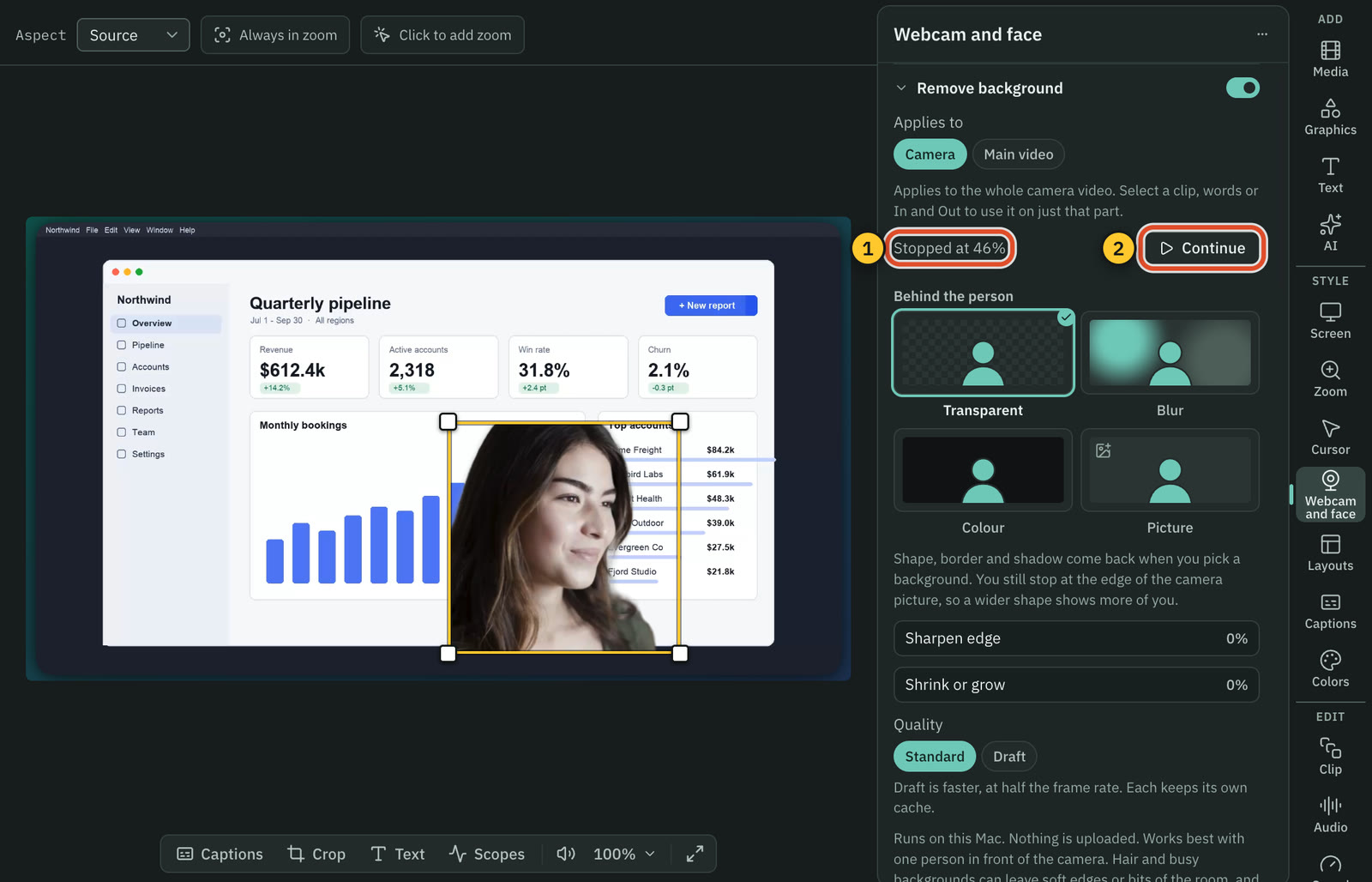
- Turning Remove background off stops it too and keeps what it made, unless another part or another video still draws from the same masks. Then it goes on with what is still used. Turning it back on goes on from there.
- Reopening a project never starts it by itself. It shows where it stopped, with Continue.
- It waits while an export or a recording runs, and says which: "Waiting for the export to finish" or "Waiting for the recording to finish".
- If it stops with an error, the line says so, and Try again goes on from the last finished part.
Export waits until it has finished
With Remove background on, a video export needs it finished for every part of every video that uses it. Until then, Export stays off and the popover says "Remove background has not finished for one of your videos. Finish it, or turn it off, then export."
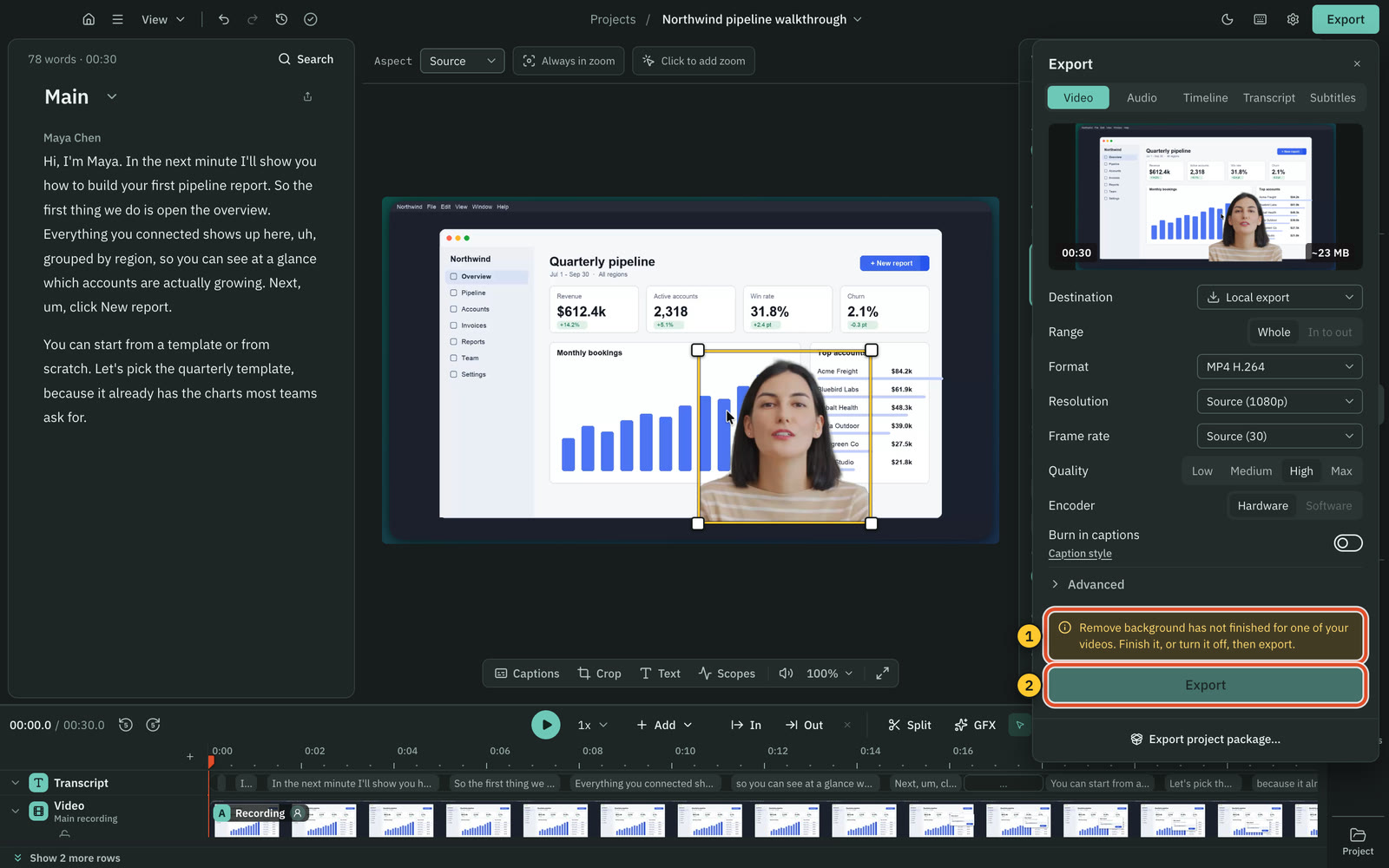
- It needs only the parts that have it on. Masks outside those parts are never asked for. With it on for the whole video, that means the whole file, even if your edit uses only part of it.
- A clip outside the export range counts, and a clip on a hidden track does not.
- A part you turned it on for still counts after you cut that part out of the timeline, so it has to finish too.
- Audio, subtitle, transcript and timeline exports are not stopped.
- A video that uses it exports as MP4 H.264, and the other formats show why they are not available. See Export a video.
What makes a good result
It works best with one person in front of the camera. The close-up in the B-roll picture above is close to a best case: one person against a plain wall and couch that are out of focus. Expect less from a harder video.
What helps
- One person in front of the camera.
- Plain, even light on them.
- Distance from the wall. Sit far enough away that the wall falls out of focus, and keep what is behind you plain.
What does not
- Hair. You will see it here first. Even on that best-case clip, a pale glow of the wall shows round the hair on dark backgrounds. The sliders thin it, and it does not go away.
- Busy backgrounds. They can leave soft edges or bits of the room.
- Clear objects. They can look see-through. In one test the dark lenses on a phone turned partly see-through, while the phone and a cup held up stayed in the picture. A hand holding the phone had a faint haze over it.
- A second person. There is no control to pick one person, and other people behind the speaker are a known weak spot of the method it uses. We have not tested it, so we cannot say what you will see. They may stay in the picture, in full or in part.
- 4K. Edges look soft, because the masks are 640 pixels on the long side.
We have not tested glasses on the face, low light or vertical video. Turn it on for a short clip and look before you rely on it for a long one.
Several videos at once
One video runs at a time, in the order you asked. Others show "Waiting for another video to finish" and start when their turn comes. Stop on a waiting video takes it out of the queue.
Under Applies to, a line tells you when it is on for another video too, such as "Also on for the main video." An export needs them all finished. Each job takes a few seconds to start when its turn comes.
Get the disk space back
Turning Remove background off, or pressing Reset to whole video, keeps the masks, so you can turn it on again without waiting. To remove them, clear the project's cache in Settings › Storage.
- Close the project. You cannot clear the one you have open, and its row says "Open now: close it to clear its cache or remove it."
- Press
⌘ ,and choose Storage. - Under What uses space, open Projects.
- Press Clear cache on the project's row. The button shows how much it frees.
Clear project caches, above the groups, does the same for every project except the one you have open.
Warning: Clearing a cache removes the masks of every video in that project, at both qualities, along with its previews and waveforms. There is no button for the masks alone, and it does not ask first. Previews and waveforms come back by themselves. Masks do not, and making them again takes as long as it did the first time. The line beside Clear project caches names only previews and waveforms, but the masks go too.
After a clear, if Remove background is still on, the preview shows the video with the room still in and an export asks you to finish first, until you press Start or Continue. A video you have already exported does not change. Moving a project to the Trash takes its masks with it. See Storage and cleaning up.
It runs on your computer
Remove background runs on your computer, on a Mac and on Windows. Nothing is uploaded, it needs no AI account, and it spends no AI credits. The model comes inside the app, so there is nothing to download. See What leaves your computer.
Making the masks needs no internet connection, but because this comes with Cutscript Pro, your plan still has to be checked. A check lasts 14 days with no connection. After that, Cutscript is on the free plan until it can check again, and Remove background behaves as it does when Pro ends. See It comes with Cutscript Pro.
The pictures on this page were taken on a Mac, so the panel reads "Runs on this Mac. Nothing is uploaded." On Windows it reads "Runs on this computer. Nothing is uploaded."
If it cannot run on your computer, the group says "Remove background does not run on this computer." and has no switch, unless a project already has it on, so that you can still turn it off.
It comes with Cutscript Pro
On the free plan Remove background still shows, with a Pro pill, the line "Remove background comes with Cutscript Pro. It removes the room behind you, with no green screen." and a Get Pro button. The switch starts nothing. Pressing it changes the line to "Remove background comes with Cutscript Pro. Get Pro to use it."
If your Pro is in use on your other computer, the line says "Remove background comes with Cutscript Pro, and your Pro is in use on your other computer." The button is Manage computers.
If Pro ends while a project has it on, or Cutscript has gone 14 days without reaching cutscript.dev:
- You can still turn the switch off.
- The masks stay in the preview, and nothing is deleted.
- The line shows how far it got, with no Start, Continue or Try again.
- Export shows "Remove background comes with Cutscript Pro. Get Pro, or turn it off, then export."
- Back on Pro, it works with nothing lost. Ready stays Ready, and a job that stopped offers Continue.
A clean export earned by a review on X takes off the watermark and nothing else, so it does not open Remove background. See Free and Pro.
Questions
Does it change my video file?
No. The masks live in the project's cache folder, and the project keeps only your settings. Turn Remove background off and the video shows as it was.
Why do parts of my video still show the room?
It may be on for only part of the video. Everything outside the part you selected keeps the room. With nothing selected, a line such as "On for 1 part of this video. Select it to change it." tells you.
Or the job has not reached them yet. The preview shows the parts it has finished, and the rest with the room still in, until the line says Ready. If it says Ready and bits of the room remain, see What makes a good result.
Should I use this or Chroma key?
If you filmed in front of an evenly lit green or blue screen, try Chroma key first. It removes one colour, on the camera or a clip, with no job to wait for, and it is on both plans. Only one of the two runs on any part of a video. If you turn on Remove background for one part of the camera, Chroma key stays on for the rest and the mask wins in that part. Chroma key itself is for the whole video: turn it on while a part is selected, and Remove background turns off in that part only.
Does a project package bring the masks with it?
No. A package leaves them out. On the other computer the line says "Not started", and Start makes them again, with Cutscript Pro.
Related
Was this page helpful?
Comments
Longer questions go better in the forum.
No comments yet. Ask a question or add what you found.
Sign in with GitHub or Google to comment.
Sign in to comment