Sound effects library
Stream and download ready-made sound effects in the app with Cutscript Pro. New sounds show up while the app is open.
Cutscript Pro comes with a library of sound effects, sorted into folders. It sits in the app under Media › Gallery › Sound effects, beside the sound effects you generate yourself.
Before you start
- Sign in to Cutscript. Every library folder and sound carries a Pro mark, on every plan. Without Pro you can browse the folders and sound names, but listening, downloading and adding a sound need Pro. See Free and Pro.
- Browsing and listening need an internet connection. Sounds you download stay on your computer and work offline.
Find and hear a sound
- Open Media in the right rail and choose Gallery.
- Choose Sound effects.
- Open a folder, or type in Search all sounds to search every folder by name. The path above the list takes you back up a folder.
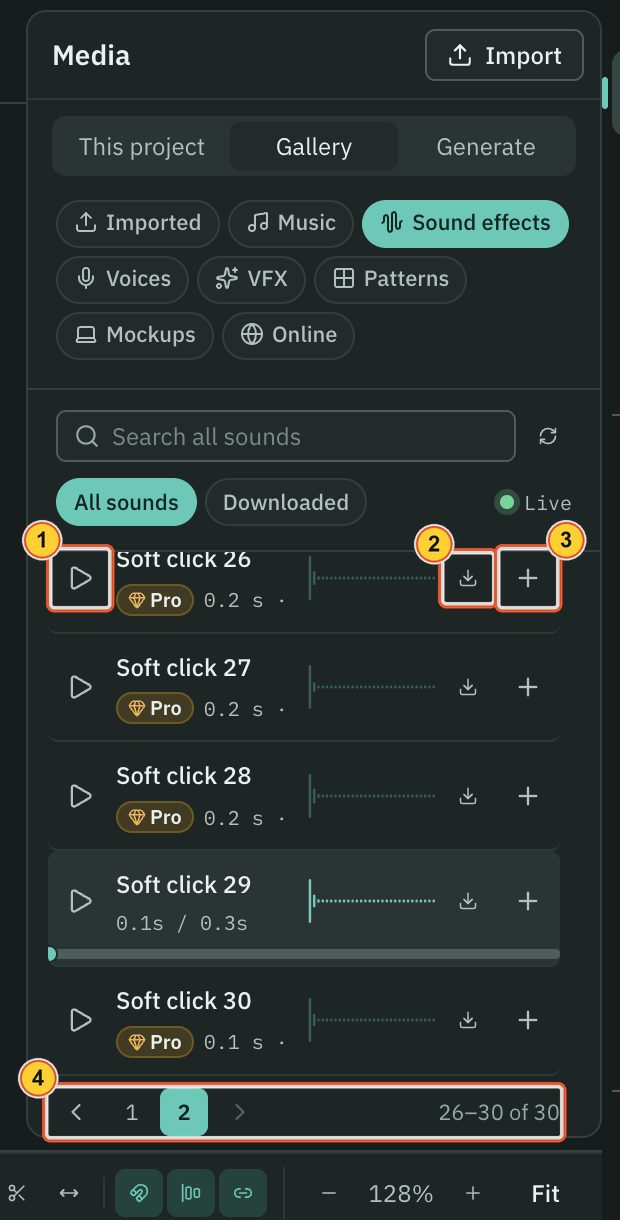
- Hover over a row for a moment to hear it, or press play. Press stop to end it. A sound streams from cutscript.dev and nothing is saved; a downloaded sound plays from your computer.
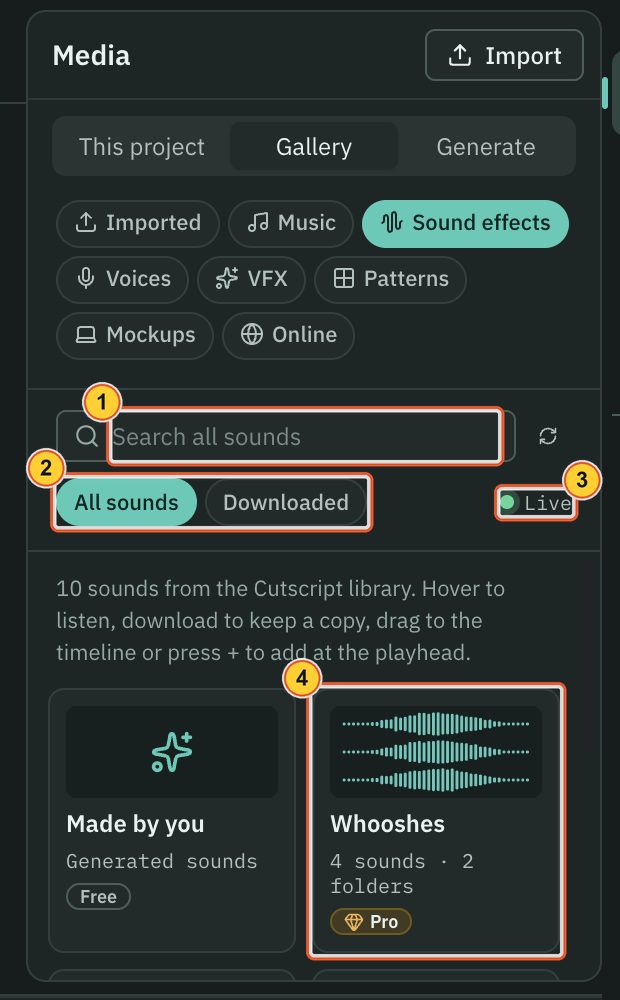
Each row shows the Pro mark, the sound's length, its file type and a small waveform.
A folder, a search or Downloaded shows 25 sounds a page. The page buttons under the list move between pages, and the line beside them says which sounds you are looking at, such as "26–50 of 312". Opening another folder, searching or switching the filter starts again from page 1. A level with more than 24 folders pages its folders the same way.
Switch between All sounds and Downloaded to see only the sounds on this computer. Made by you holds the sound effects you generated. It carries a Free mark: your own sounds play and add on every plan.
Use a sound
- Add it at the playhead: press + on a row. It goes on the first sound effects track with room at the playhead, else an audio track with room, else a new sound effects track.
- Add it somewhere else: drag a row onto the timeline.
- Keep it: press the download button on a row. A download that stops picks up where it left off the next time. A downloaded sound shows a tick; press the tick to see the file in the Sound effects folder.
Adding a sound copies it into the project, so the project keeps it offline and on another computer. It stays in the project if Pro ends.
New sounds
The library stays up to date while the app is open. New sounds and folders show up within a few seconds and carry a New label. The page you are on stays put while they arrive. The line above the list says Live while Cutscript gets changes as they happen, and Every 30 s when it checks every 30 seconds instead. To check straight away, press the refresh button beside the search box (Check for new sounds now).
Offline
If Cutscript cannot reach cutscript.dev, the folders and names it last saw still show, with a line that says so. Downloaded lists the sounds on this computer, and they play and add as usual.
Only in the app
The library lives inside Cutscript. You browse, play and download its sounds in the app, not on cutscript.dev. The Sound effects page on the website says what the library holds, and nothing plays there.
Where the sounds come from
Cutscript adds every sound to the library. Each one is a sound Cutscript has the right to share with Pro members, and each upload records where the sound came from and under what licence.
Related
Was this page helpful?
Comments
Longer questions go better in the forum.
No comments yet. Ask a question or add what you found.
Sign in with GitHub or Google to comment.
Sign in to comment