Record yourself with a teleprompter
Camera mode records only your camera and microphone, on any plan. With Pro, your script shows on screen and can follow your voice as you read.
Camera mode records you talking to the camera, with no screen. With Cutscript Pro, type or paste your script in the recorder and it shows on your screen over a see-through background while you read. By default the script follows your voice: the words you have read dim, and the next line moves up to the reading line. When you stop, the take opens in the editor with your camera as the main video, ready to edit by its transcript.
Before you start
- Cutscript Pro, for the script. Camera mode itself works on the free plan. The script, the teleprompter on screen and Follow my voice come with Pro. See On the free plan.
- A camera and a microphone. Your computer asks for camera and microphone access the first time. If you said no, allow Cutscript in System Settings › Privacy & Security on a Mac, or turn on the camera and microphone switches in Windows Settings › Privacy & security.
- Following your voice runs on your computer and needs no internet. It works in English, on a Mac with Apple silicon, an Intel Mac on macOS 15 or later, Windows, and Linux with glibc 2.32 or later (Ubuntu 22.04 or newer). Anywhere else the teleprompter says it cannot follow your voice and scrolls at the speed you set.
- Put the recorder on the screen your camera sits on. The teleprompter shows on the display the recorder is on, so the script is close to the camera and your eyes stay near the lens.
Record with your script
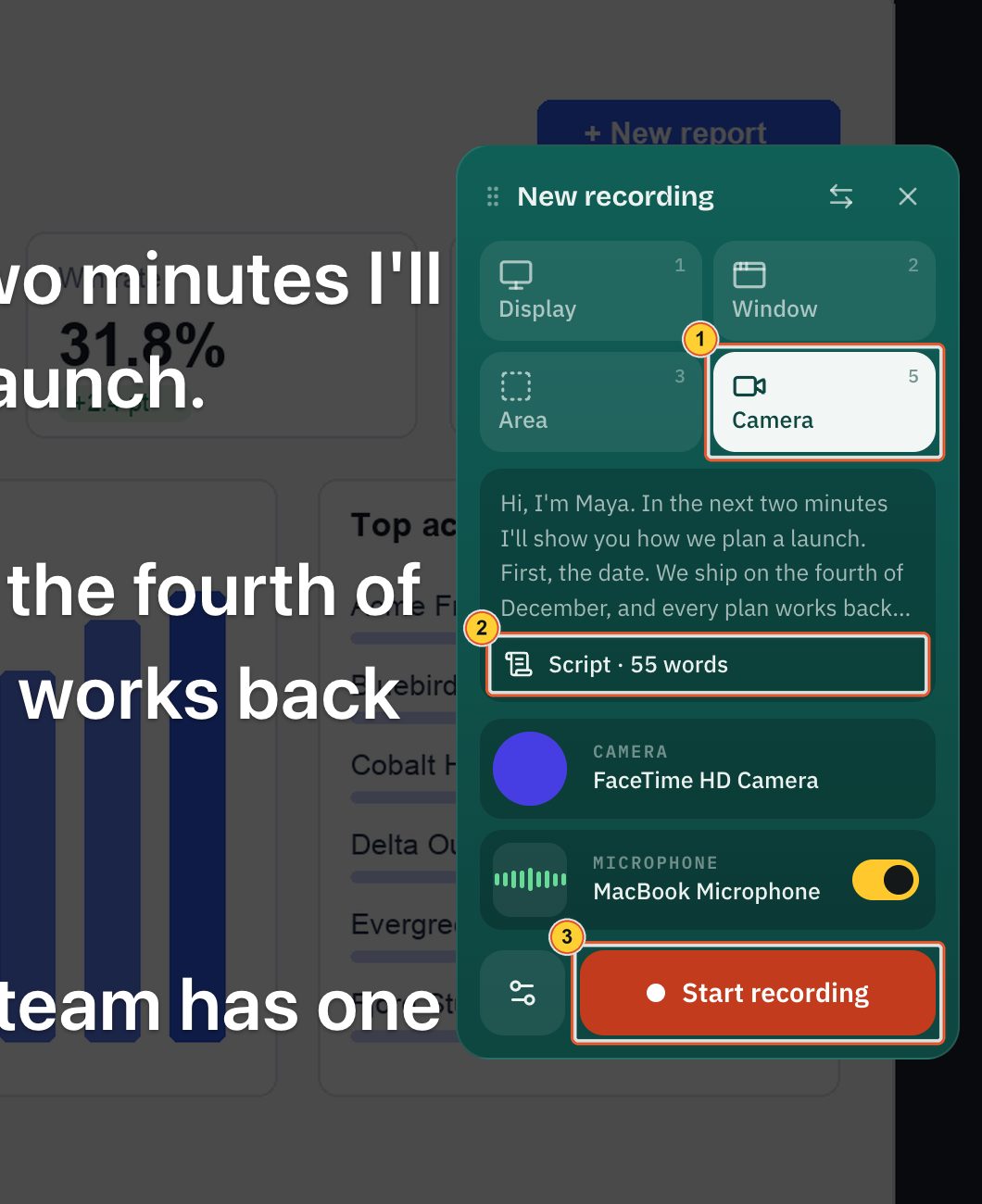
- Press Record on the home screen, or choose File › New Recording… (
⇧ ⌘ Ron a Mac,Ctrl Shift Ron Windows). The recorder opens on the side of your screen. - Press Camera, or press
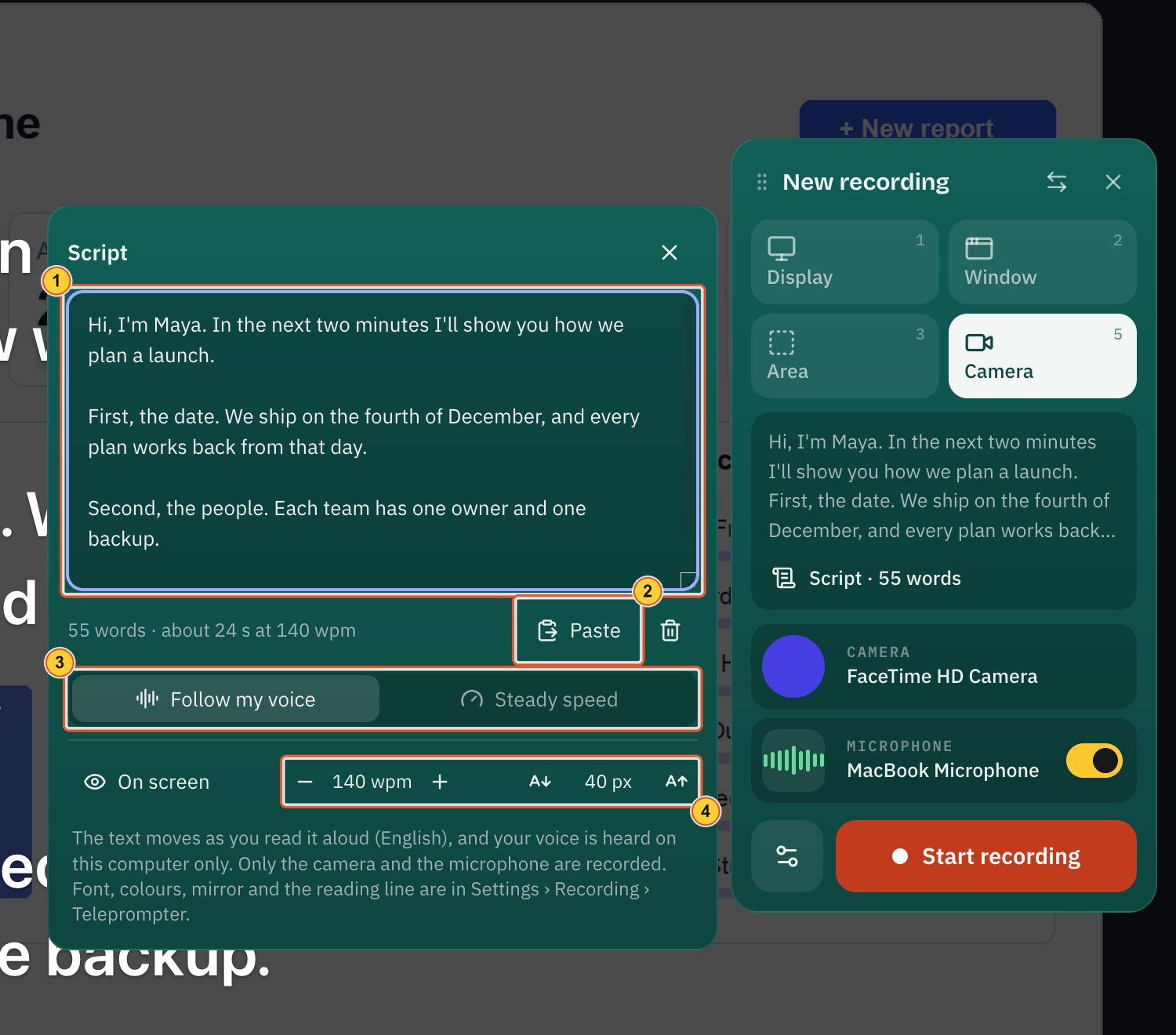
5. The preview card turns into your script, and the sound row goes away because Camera mode records no computer sound. - Press Add script (it reads Script · 120 words once there is one). Type your script, or press Paste to bring in what you copied. The count under the box says how long it takes to read at your speed.
- Choose how the text moves: Follow my voice or Steady speed. On screen shows or hides the teleprompter, and the steppers change the speed and the text size.
- Check your camera and microphone in the recorder. Their names open the pickers.
- Press Start recording, or press
Return. The countdown runs in the recorder, and the script waits at the first line. - Read to the camera. With Follow my voice the text moves with you. With Steady speed it scrolls at the speed you set from the first recorded moment.
- Press Stop. The take opens in the editor, with your camera as the main video, full frame.
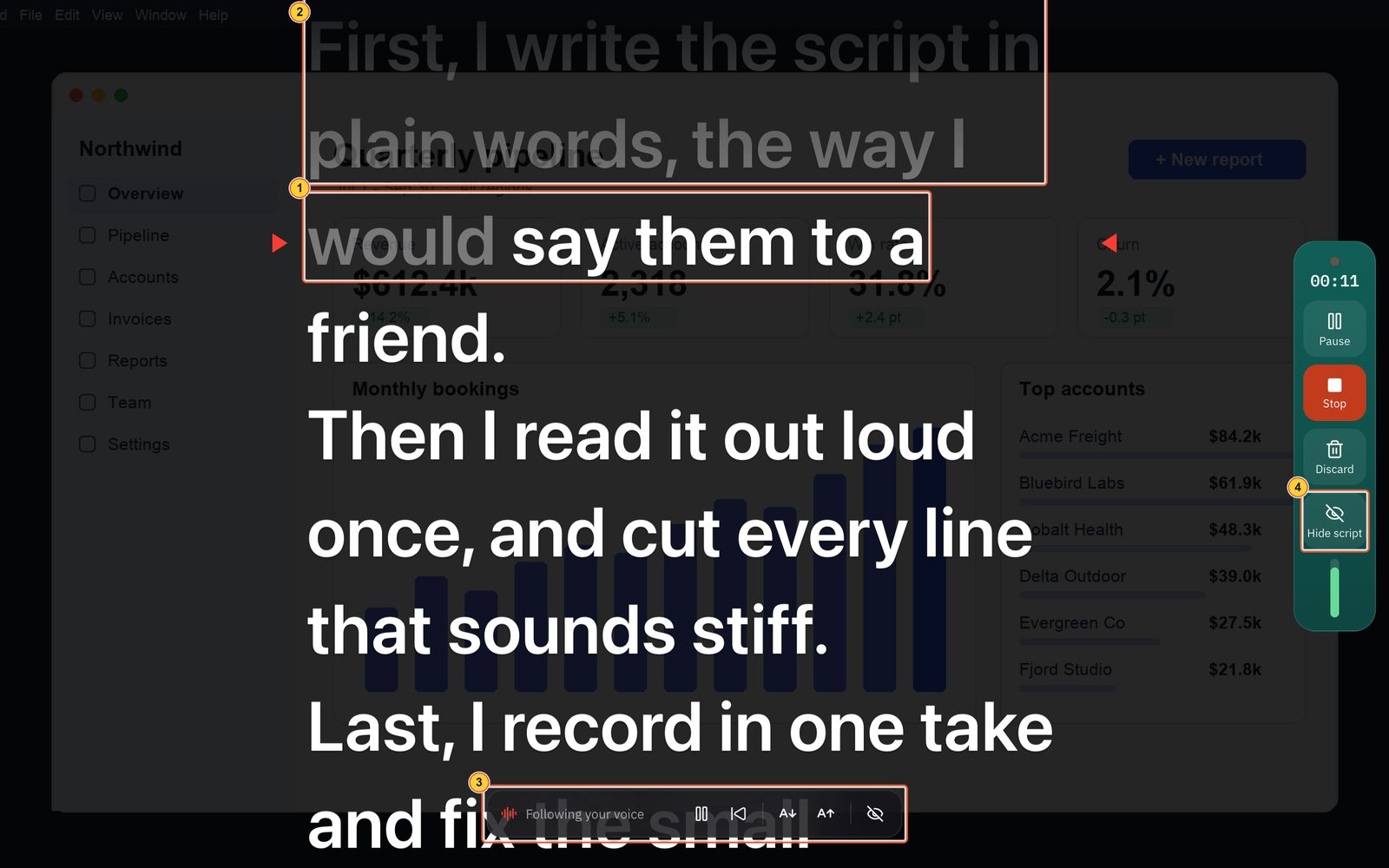
During the take, Hide script in the recorder puts the teleprompter away, and Show script brings it back. The recording carries on either way.
Follow your voice
With Follow my voice, Cutscript listens to the microphone you are recording and matches what you say to your script.
- The words you have read dim, and the line with the next word eases up to the reading line.
- Skip a word, add one, or say it a little differently, and it carries on. It never jumps back.
- Numbers can be read as words: "2026" matches "two thousand twenty six".
- It listens only while the take records. Pause the take and it waits.
- Everything runs on your computer. Nothing is uploaded and it costs nothing.
Back to the start and the mouse wheel tell it where to carry on from, if you start a paragraph again. When the microphone is off, it says so and scrolls at the speed you set.
Tip: Read at your normal pace. It follows you better when you speak in whole sentences than when you read word by word.
Control the teleprompter while you read
Move the pointer over the text to show its controls:
| Control | What it does | Key |
|---|---|---|
| Pause and Resume | Holds the text. The recording keeps going. | Space |
| Back to the start | Goes back to the first line. | Home |
| Slower and Faster | Changes the speed (Steady speed only). | ↓ and ↑ |
| Smaller text and Larger text | Changes the text size. | |
| Hide the teleprompter | Puts it away, like Hide script. |
Page Up and Page Down move the text by a screen, and the mouse wheel moves it by hand. Outside the text column, clicks go through to the apps underneath, so the rest of your screen stays usable. Changes you make here become your new defaults.
Change how the script looks
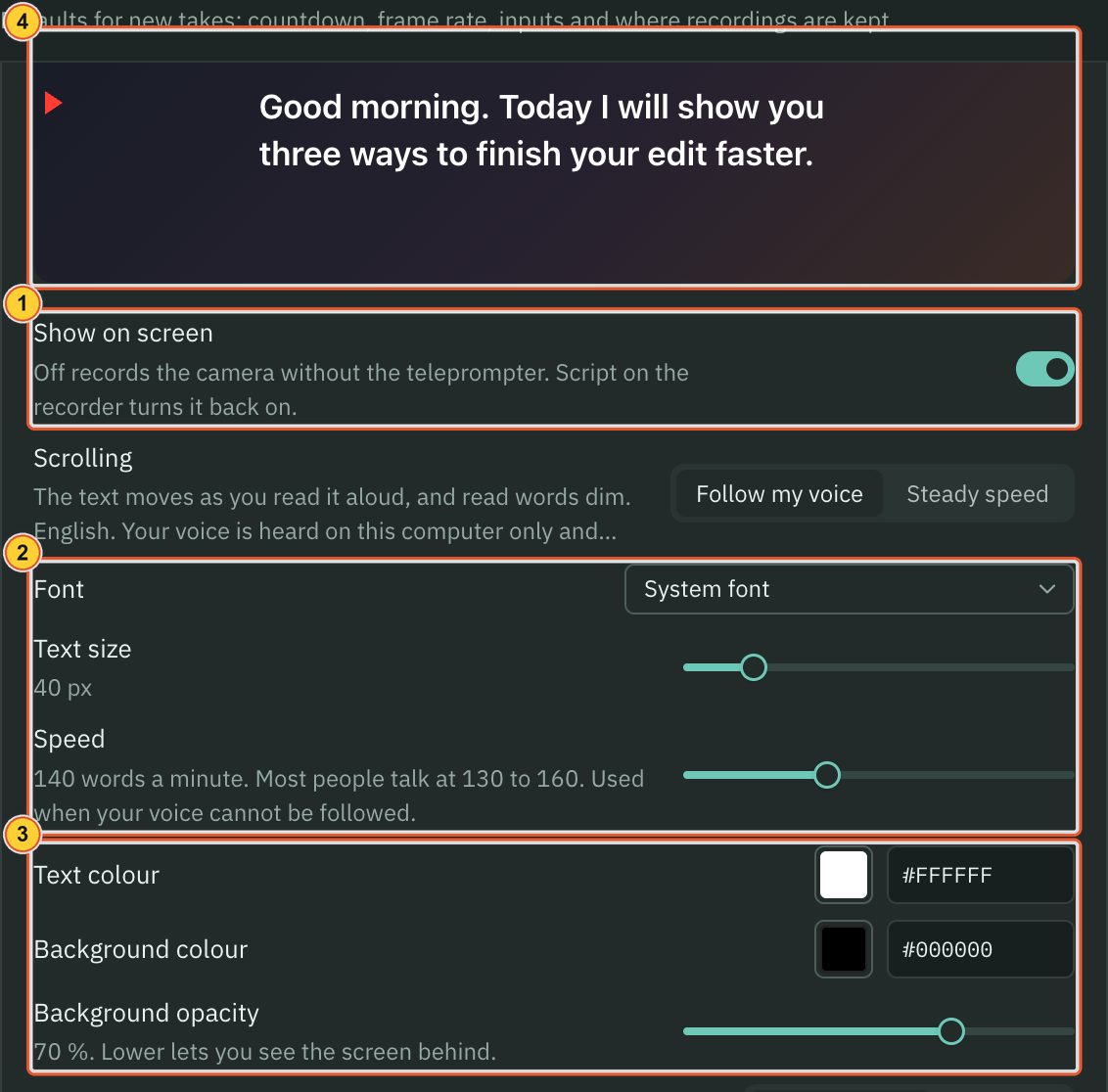
Settings › Recording › Teleprompter sets the defaults, with a live preview:
| Setting | Choices | Default |
|---|---|---|
| Show on screen | On or off | On |
| Scrolling | Follow my voice or Steady speed | Follow my voice |
| Font | Any font on your computer | System font |
| Text size | Points | 48 |
| Speed | Words per minute, 60 to 300 | 140 |
| Text colour and Background colour | Any colour | White on black |
| Background opacity | How solid the background is | 70% |
| Background covers | Whole screen or Text only | Whole screen |
| Text width, Line spacing, Align | Width of the column, space between lines, Left or Centre | |
| Reading line | Show the line your eyes rest on, and its height | On |
| Mirror the text | For teleprompter glass that reflects the screen | Off |
Your script is saved with the recorder, so it is still there the next time you open it.
On the free plan
Camera mode records your camera and microphone on the free plan, and the take opens in the editor as usual. What needs Pro is the script: adding one, the teleprompter on screen, and Follow my voice.
- In Camera mode the script card says "The teleprompter comes with Cutscript Pro. It scrolls your script on screen while you record." Add script has a Pro mark, and Get Pro opens the pricing page.
- Pressing Add script opens nothing. The line changes to "The teleprompter comes with Cutscript Pro. Get Pro to use it."
- The teleprompter never shows, and Show script and Hide script are not in the recorder during the take.
- Settings › Recording › Teleprompter shows the Pro mark, the same line and Get Pro, and none of the settings.
- If your Pro is in use on your other computer, the line says so and the button is Manage computers.
If Pro ends, your script and your teleprompter settings stay saved. Nothing is deleted, and they are back as they were when you get Pro again. Cutscript checks your plan every time the recorder opens, when you pick Camera mode, and whenever your account changes.
On Windows and Linux
Camera mode and the teleprompter work the same on Windows. On Linux, the teleprompter takes every click on its display while Camera mode is open, because Linux cannot let clicks through a window and still show the pointer. The recorder stays above it.
Related
Was this page helpful?
Comments
Longer questions go better in the forum.
No comments yet. Ask a question or add what you found.
Sign in with GitHub or Google to comment.
Sign in to comment